🛠️ Auto n8n Updater (Docker)


Last edited 206 days ago
How it works
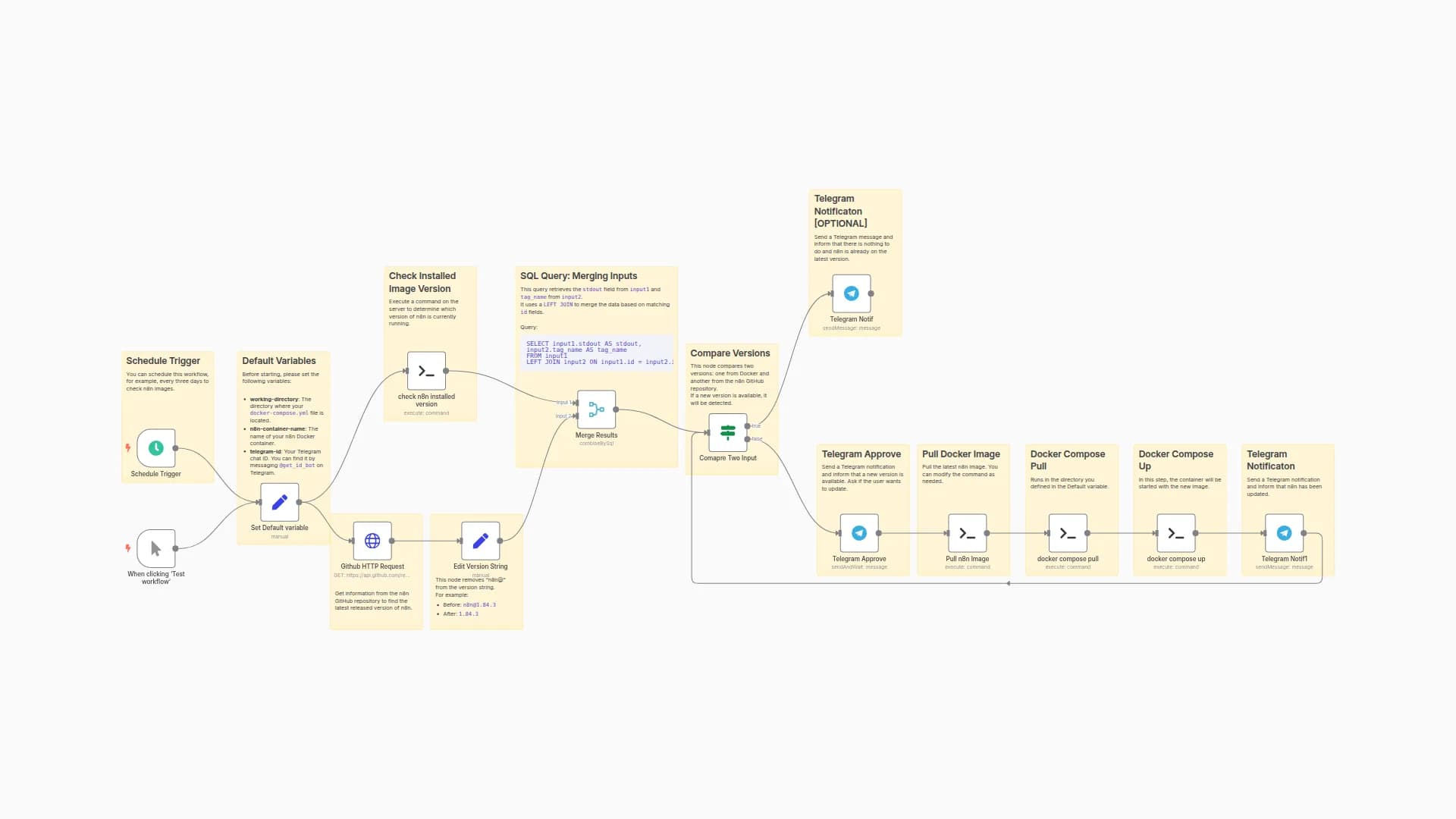
This workflow automates the process of checking for and applying updates to a self-hosted n8n instance running on Docker. It runs on a schedule, checks for new versions, summarizes the release notes with AI, and asks for your approval via Telegram before updating.
- Scheduled Check: The workflow runs hourly, triggered by a
Schedulenode. - Version Discovery:
- It first confirms it's running in a Docker environment.
- It uses SSH to connect to the host machine and inspects the running n8n container to find its current version tag (e.g.,
latestornext). - It then queries the Docker Hub API to compare the image
digest(a unique ID for an image version) of the running version against the latest available version for that tag.
- Update Detection: If the digests do not match, it means a new image has been pushed for your version tag (e.g., a new
latestimage is available), and an update is needed. - AI-Powered Release Notes:
- It fetches the official release notes for the new version from the GitHub API.
- An AI model (LLM) summarizes these technical notes into a concise, human-readable overview of the key features and fixes.
- Manual Approval: It sends a message to a Telegram chat with the AI-generated summary and two buttons: "✅ Update" and "❌ Ignore". The workflow then pauses and waits for your response.
- Execute Update: If you approve the update, the workflow uses SSH to run a
docker composecommand on your server, which pulls the new image, stops the old containers, and starts the new ones.
Set up steps
Setup time: ~5-10 minutes
- SSH Credentials:
- Go to Credentials and create a new SSH credential with the username, host, and password/private key for the server where your n8n Docker instance is running.
- Select this credential in the
Get n8n Current VersionandUpdate Dockernodes.
- Telegram Bot Credentials:
- Create a Telegram Bot and get its API token.
- Go to Credentials and create a new Telegram credential with your bot's token.
- Select this credential in the
Send a text messagenode.
- AI Model Credentials:
- Ensure you have credentials for an AI provider (like Google AI, OpenAI, etc.) set up.
- Select your desired credential in the
Google Gemini Chat Modelnode (or replace it with your preferred LLM node).
- Configure Paths and Commands:
- Open the
Docker Pathnode. Set thedocker_pathto the absolute path of yourdocker-compose.ymlfile on the server (e.g.,/root/n8n). - If you use workers, adjust the
worker_commandto include the correct--scaleargument for your setup. If not, you can leave it blank.
- Open the
- Set Your Chat ID:
- Open the
Approve UpdateTelegram node and enter your personal Telegram Chat ID in theChat IDfield. This ensures the approval message is sent to you.
- Open the
- Activate the workflow. It will now check for updates every hour.
To enable fully automatic updates (without manual approval): Delete the nodes from Get n8n Releases to Approved ? and connect the Needs Update ? node directly to the Update Docker node.
You may also like

New to n8n?
Need help building new n8n workflows? Process automation for you or your company will save you time and money, and it's completely free!


