Automate Lead Scraping with Scrapeless to Google Sheets with Data Cleaning


Last edited 206 days ago
This workflow contains community nodes that are only compatible with the self-hosted version of n8n.
Prerequisites
- A n8n account (free trial available)
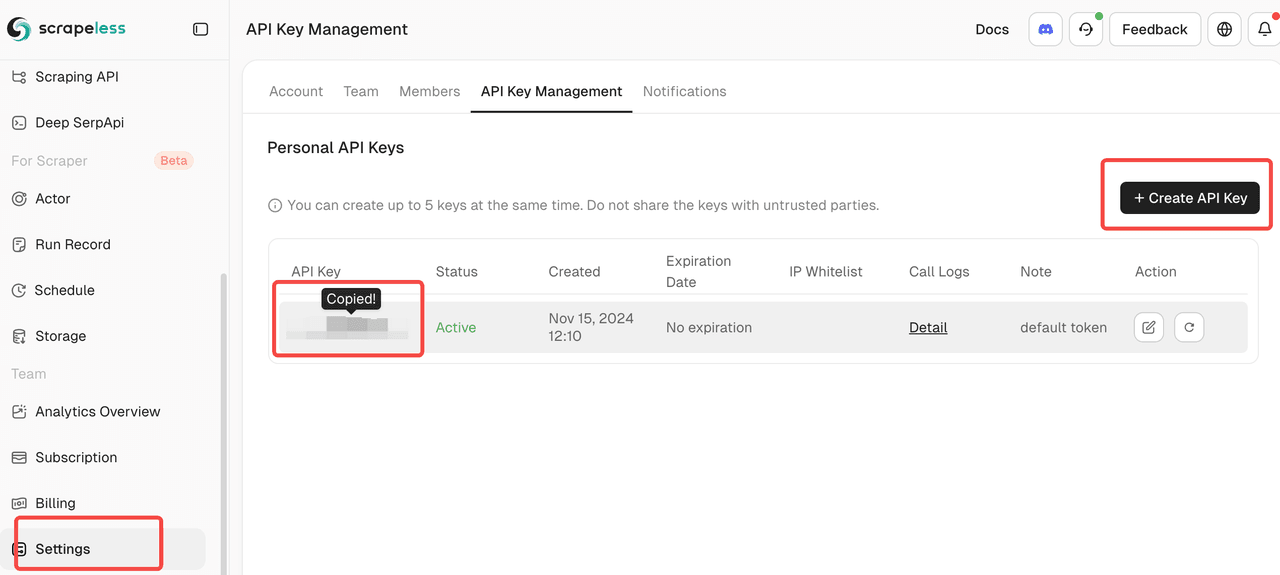
- A Scrapeless account and API key
- A Google account to access Google Sheets
🛠️ Step-by-Step Setup
1. Create a New Workflow in n8n
Start by creating a new workflow in n8n. Add a Manual Trigger node to begin.
2. Add the Scrapeless Node
- Add the Scrapeless node and choose the
Scrapeoperation - Paste in your API key
- Set your target website URL
- Execute the node to fetch data and verify results
3. Clean Up the Data
Add a Code node to clean and format the scraped data. Focus on extracting key fields like:
- Title
- Description
- URL
4. Set Up Google Sheets
- Create a new spreadsheet in Google Sheets
- Name the sheet (e.g.,
Business Leads) - Add columns like
Title,Description, andURL
5. Connect Google Sheets in n8n
- Add the Google Sheets node
- Choose the operation
Append or update row - Select the spreadsheet and worksheet
- Manually map each column to the cleaned data fields
6. Run and Test the Workflow
- Click "Execute Workflow" in n8n
- Check your Google Sheet to confirm the data is properly inserted
Results
With this automated workflow, you can continuously extract business lead data, clean it, and push it directly into a spreadsheet — perfect for outbound sales, lead lists, or internal analytics.
How to Use
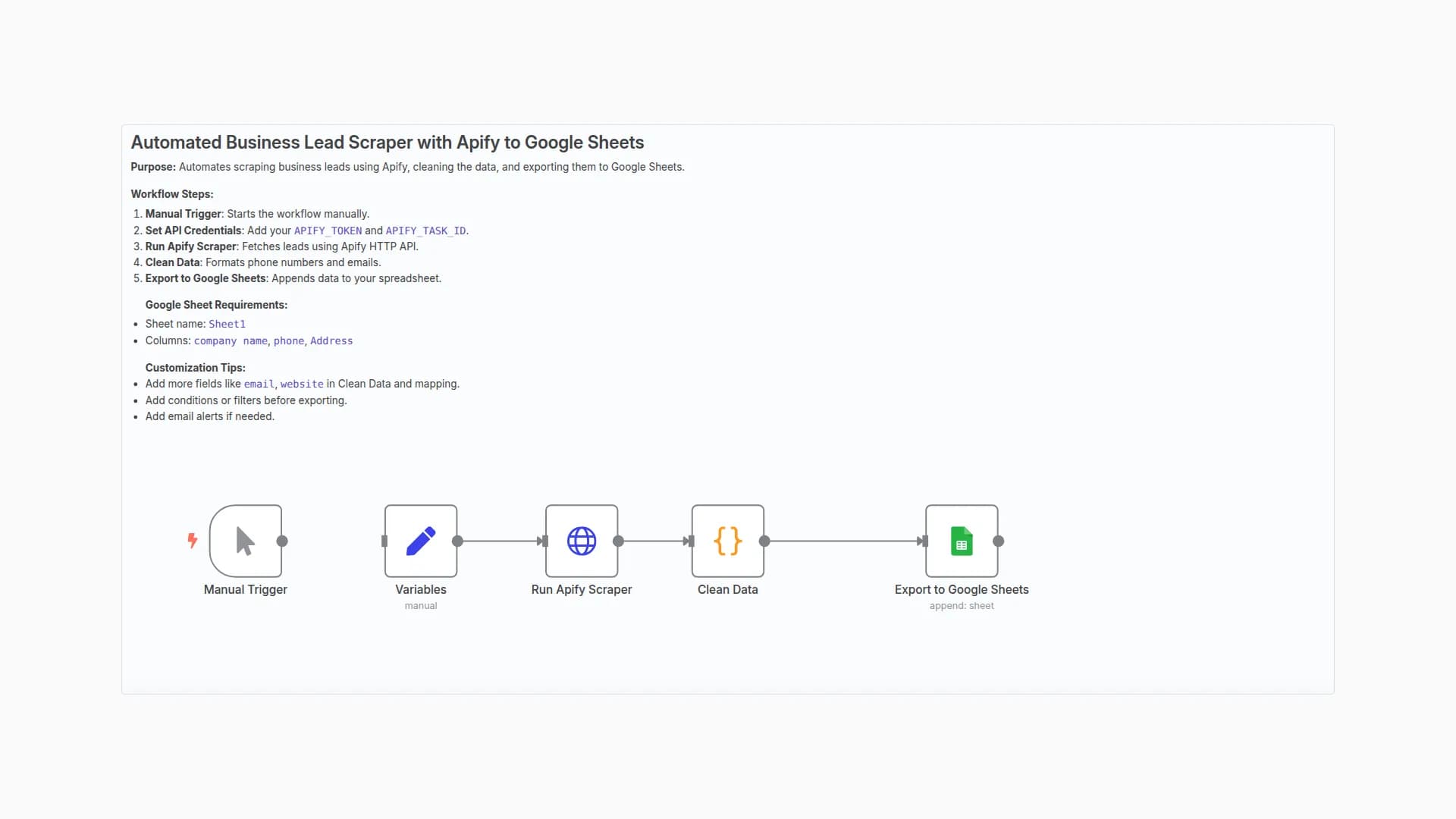
⚙️ Open the Variables node and plug in your Scrapeless credentials.
📄 Confirm the Google Sheets node points to your desired spreadsheet.
▶️ Run the workflow manually from the Start node.
Perfect For:
- Sales teams doing outbound prospecting
- Marketers building lead lists
- Agencies running data aggregation tasks
You may also like

New to n8n?
Need help building new n8n workflows? Process automation for you or your company will save you time and money, and it's completely free!


