Automated Bulk Cold Email Sender using Gmail, SMTP and Google Sheets


Last edited 206 days ago
Overview
This workflow automates the process of sending personalized cold email sequences to your prospects. It fetches un-emailed leads from your Google Sheet, validates their email addresses, and then dispatches tailored emails according to a predefined schedule. It updates your CRM (Google Sheet) with the status of each sent email, ensuring your outreach efforts are tracked and efficient.
Use Case
This workflow is perfect for:
- Sales Teams: Automate the delivery of multi-stage cold email campaigns to a large volume of leads.
- Business Development: Nurture prospects over time with a structured email sequence.
- Recruiters: Send out introductory emails to potential candidates for open positions.
- Marketers: Distribute personalized outreach for events, content, or product launches.
- Anyone doing cold outreach: Ensure consistent follow-up and track email performance without manual effort.
How It Works
- Scheduled Trigger: The workflow is set to run automatically at a defined interval (e.g., every 6 hours, as currently configured by the "Set Timer" node). This ensures regular outreach without manual intervention.
- Fetch Unsent Emails: The "Get Emails" node queries your Google Sheet to identify prospects who haven't yet received the current email in the sequence (i.e., "Email Sent " is "No").
- Control Volume: A "Limit" node can be used to control the number of emails sent in each batch, preventing you from sending too many emails at once and potentially hitting sending limits.
- Loop Through Prospects: The "Loop Over Items" node processes each selected prospect individually.
- Email Validation (Conditional Send): An "If" node checks if the prospect's "Email Address" is valid and exists. This prevents sending emails to invalid addresses, improving deliverability.
- Send Email:
- "Send Email" Node: For valid email addresses, this node dispatches the personalized email to the prospect. It retrieves the recipient's email, subject, and body from your Google Sheet.
- "connect" Node: (Note: The provided JSON uses a generic
emailSendnode named "connect" that links to an SMTP credential. This represents the actual email sending mechanism, whether it's Gmail or a custom SMTP server.)
- Update CRM: After successfully sending an email, the "Update Records" node updates your Google Sheet. It marks the "Email Sent " column as "Yes" and records the "Sent on" timestamp and a "Message Id" for tracking.
- Delay Between Sends: A "Wait" node introduces a delay between sending emails to individual prospects. This helps mimic human sending behavior and can improve deliverability.
How to Set It Up
To set up your Automated Cold Email Sender, follow these steps:
- Google Sheet Setup:
- Duplicate the Provided Template: Make a copy of the Google Sheet Template (
1TjXelyGPg5G8lbPDI9_XOReTzmU1o52z2R3v8dYaoQM) into your own Google Drive. This sheet should contain columns for "Name", "Email Address ", "Sender Email", "Email Subject", "Email Body", "Email Sent ", "Sent on", and "Message Id". - Connect Google Sheets: Ensure your Google Sheets OAuth2 API credentials are set up in n8n and linked to the "Get Emails" and "Update Records" nodes.
- Update Sheet IDs: In both "Get Emails" and "Update Records" nodes, update the
documentIdwith the ID of your copied template.
- Duplicate the Provided Template: Make a copy of the Google Sheet Template (
- Email Sending Service Credentials:
- Gmail: If using Gmail, ensure your Gmail OAuth2 credentials are configured and connected to the "Send Email" node (or the "connect" node, if that's your chosen sender).
- Other Email Services (SMTP): If you use a different email service, you'll need to set up an SMTP credential in n8n and connect it to the "connect" node. Refer to the "Sticky Note4" for guidance on non-Google email services.
- Configure Timer:
- In the "Set Timer" node, adjust the
hoursIntervalor other time settings to define how frequently you want the email sending process to run (e.g., every 6 hours, once a day, etc.).
- In the "Set Timer" node, adjust the
- Control Volume (Optional):
- In the "Limit" node, you can set the
maxItemsto control how many emails are processed and sent in each batch. This is useful for managing email sending limits or gradual outreach.
- In the "Limit" node, you can set the
- Import the Workflow: Import the provided workflow JSON into your n8n instance.
- Populate Your Sheet: Fill your copied Google Sheet with prospect data, including the email subject and body for each email you wish to send. Ensure the "Email Sent " column is initially "No".
- Activate and Monitor: Activate the workflow. It will begin fetching and sending emails based on your configured schedule. Monitor your Google Sheet to track the "Email Sent " status.
This workflow provides a robust and automated solution for managing your cold email campaigns, saving you time and increasing your outreach efficiency.
You may also like
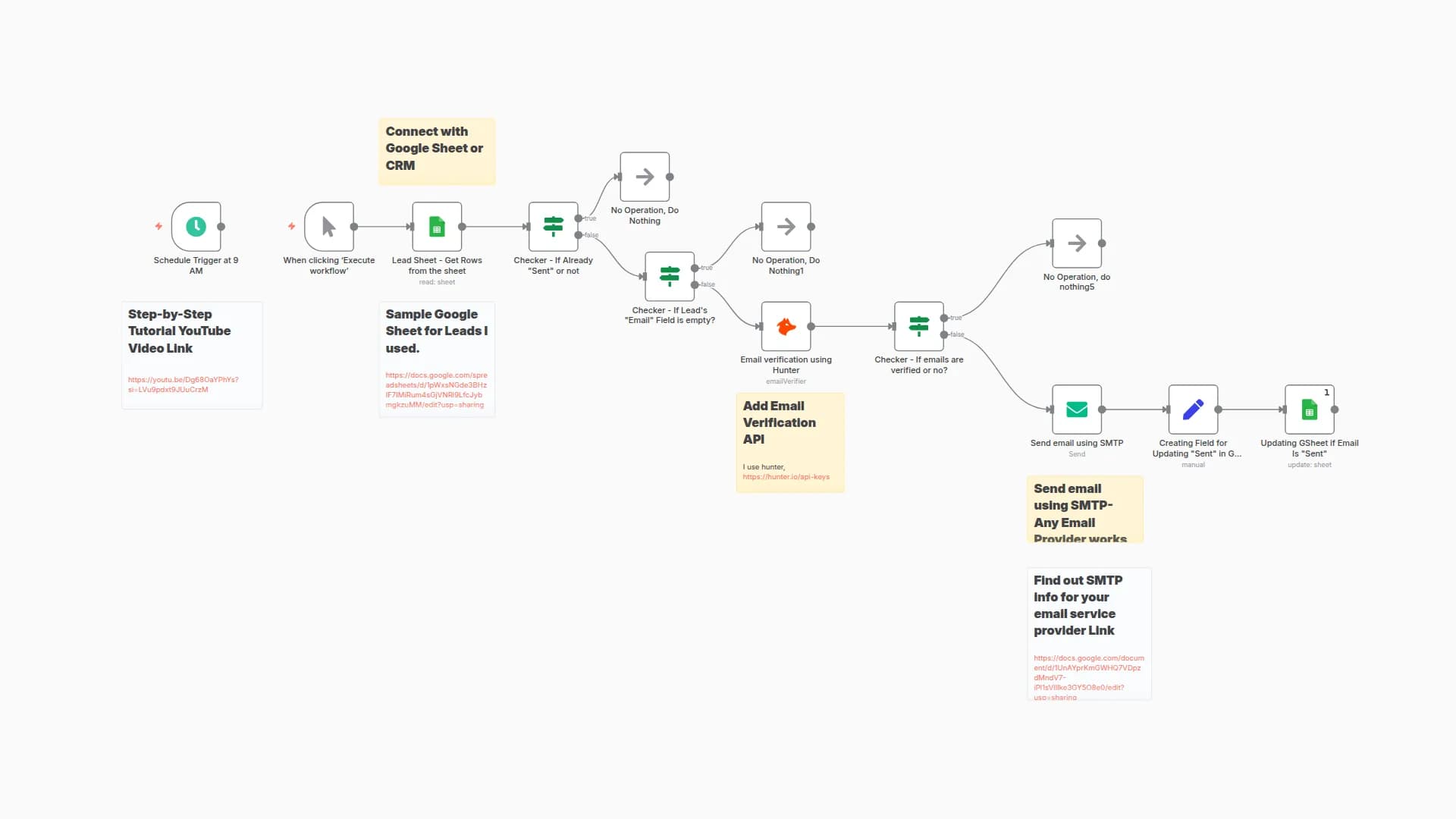
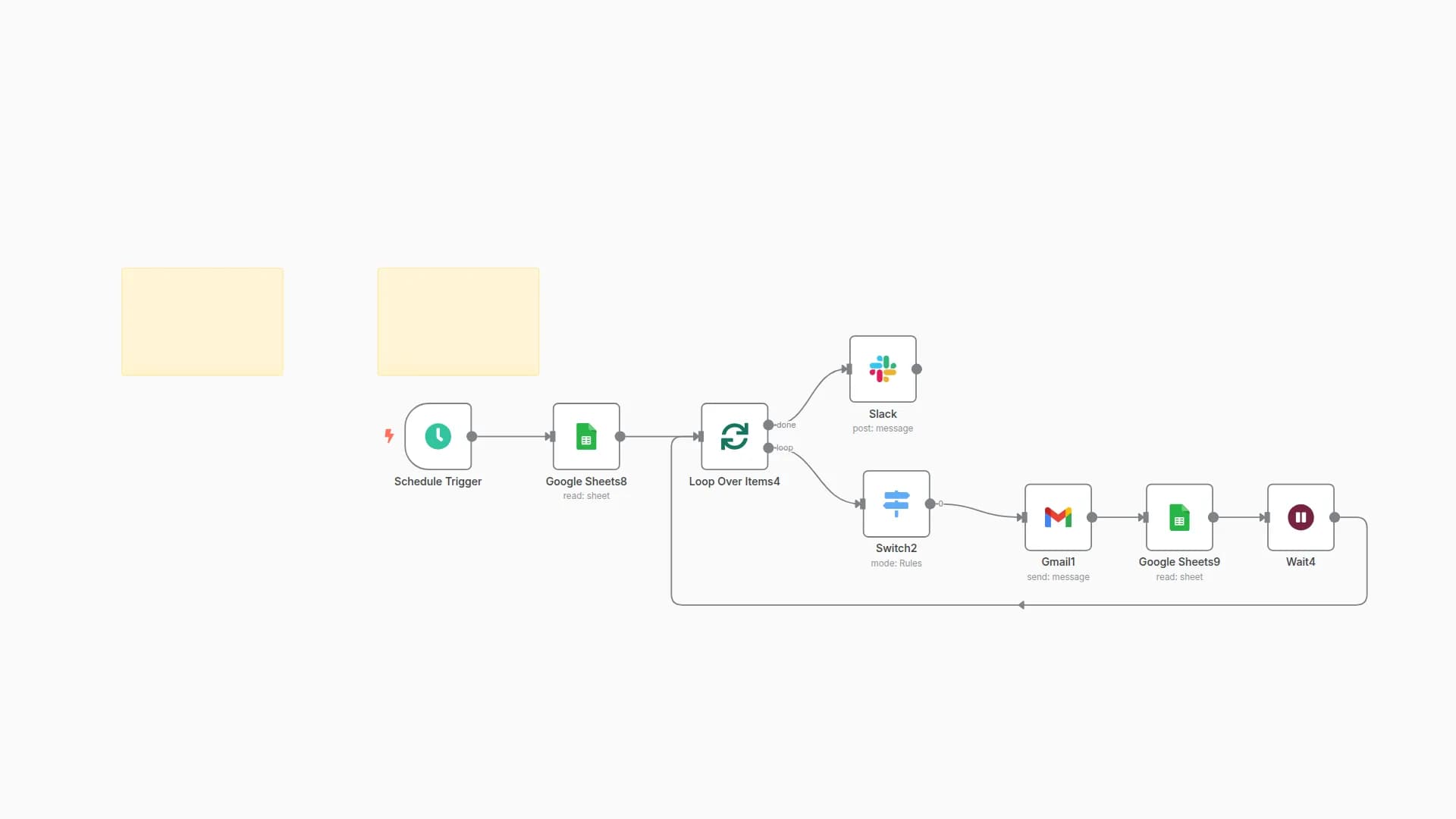
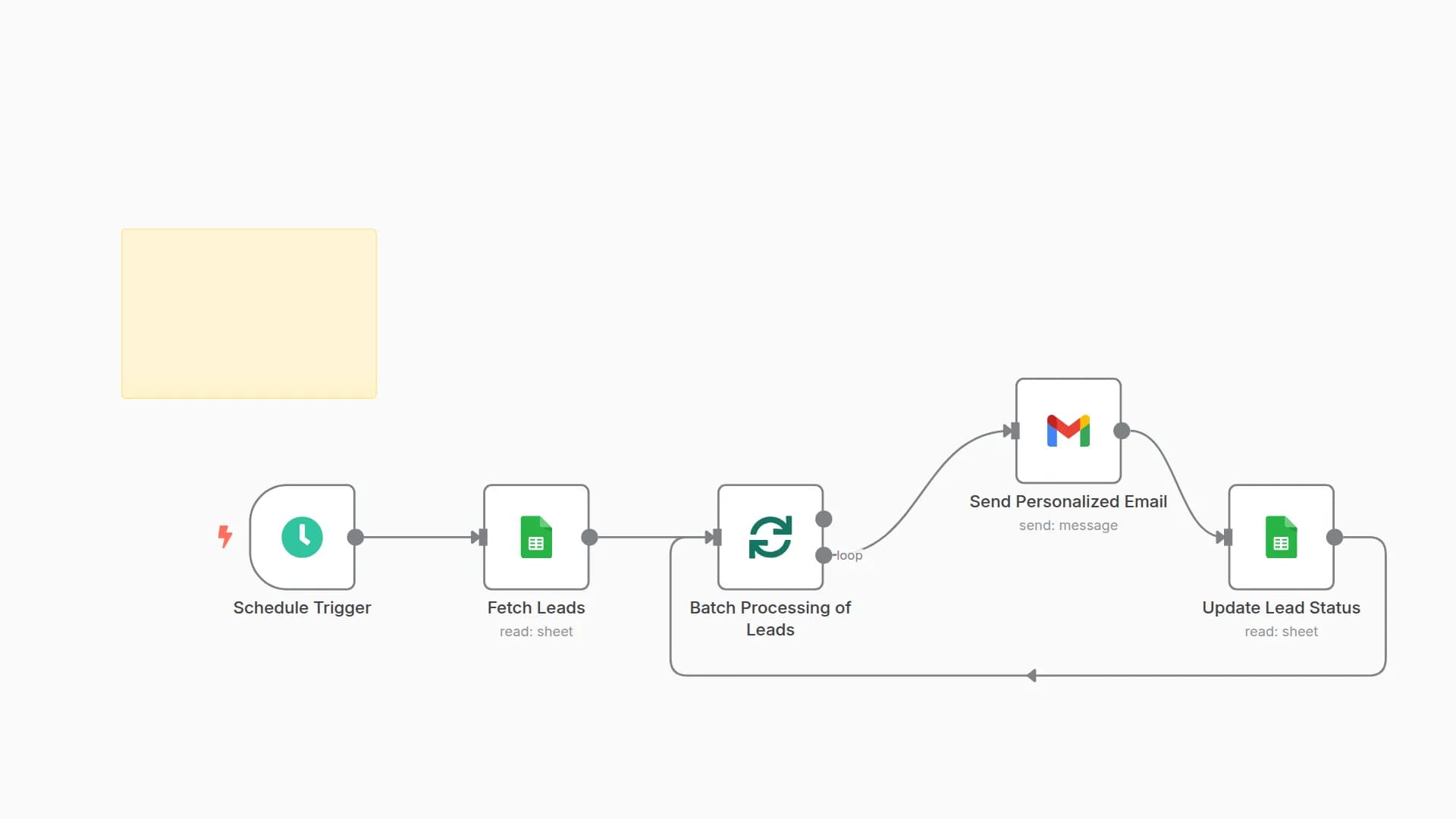
New to n8n?
Need help building new n8n workflows? Process automation for you or your company will save you time and money, and it's completely free!


