Collect & Process Trip Feedback with Google Sheets and Email Notifications


Last edited 206 days ago
This n8n workflow automates the collection and processing of trip feedback data using Google Sheets as the backend. When new users are added to the system, they automatically receive feedback forms via email, and all responses are systematically processed and stored in Google Sheets for analysis and record-keeping.
Good to know
- The delay buffer prevents system overload and ensures data integrity before sending notifications.
- All feedback data is automatically organized and maintained in Google Sheets for easy access and analysis.
- The workflow handles both new user onboarding and trip feedback submission seamlessly.
How it works
- The
Trigger - New User Entrynode detects when a new user is added to the Google Sheets feedback form database. - The
Delay - Process Buffernode introduces a processing delay to ensure data is fully processed before sending notifications, avoiding premature actions. - The
Send Email To That New Usernode automatically sends a feedback form email to the newly registered user. - When a user submits their trip feedback, the
Trigger - Trip Form Submissionnode captures the submission. - The
Tack All Feedback Itemnode iterates over each form submission item to process multiple entries if present, ensuring all feedback data is handled. - The
Update - Trip Feedback Sheetnode appends or updates the trip feedback data in the Google Sheets, maintaining an organized record of all responses.
How to use
- Import the workflow into n8n and configure the nodes with your Google Sheets API credentials and email service settings.
- Set up your Google Sheets with the appropriate columns for user data and feedback responses.
- Test the workflow by adding a new user entry to verify email delivery and feedback processing.
Requirements
- Google Sheets API credentials with read/write permissions
- Email service configuration (SMTP or email API)
- Access to Google Sheets containing user data and feedback forms
Customising this workflow
- Modify the email template in the
Send Email To That New Usernode to match your branding and feedback requirements. - Adjust the delay timing in the
Delay - Process Buffernode based on your system's processing needs. - Customize the Google Sheets structure and update the
Update - Trip Feedback Sheetnode accordingly to match your data organization preferences.
You may also like
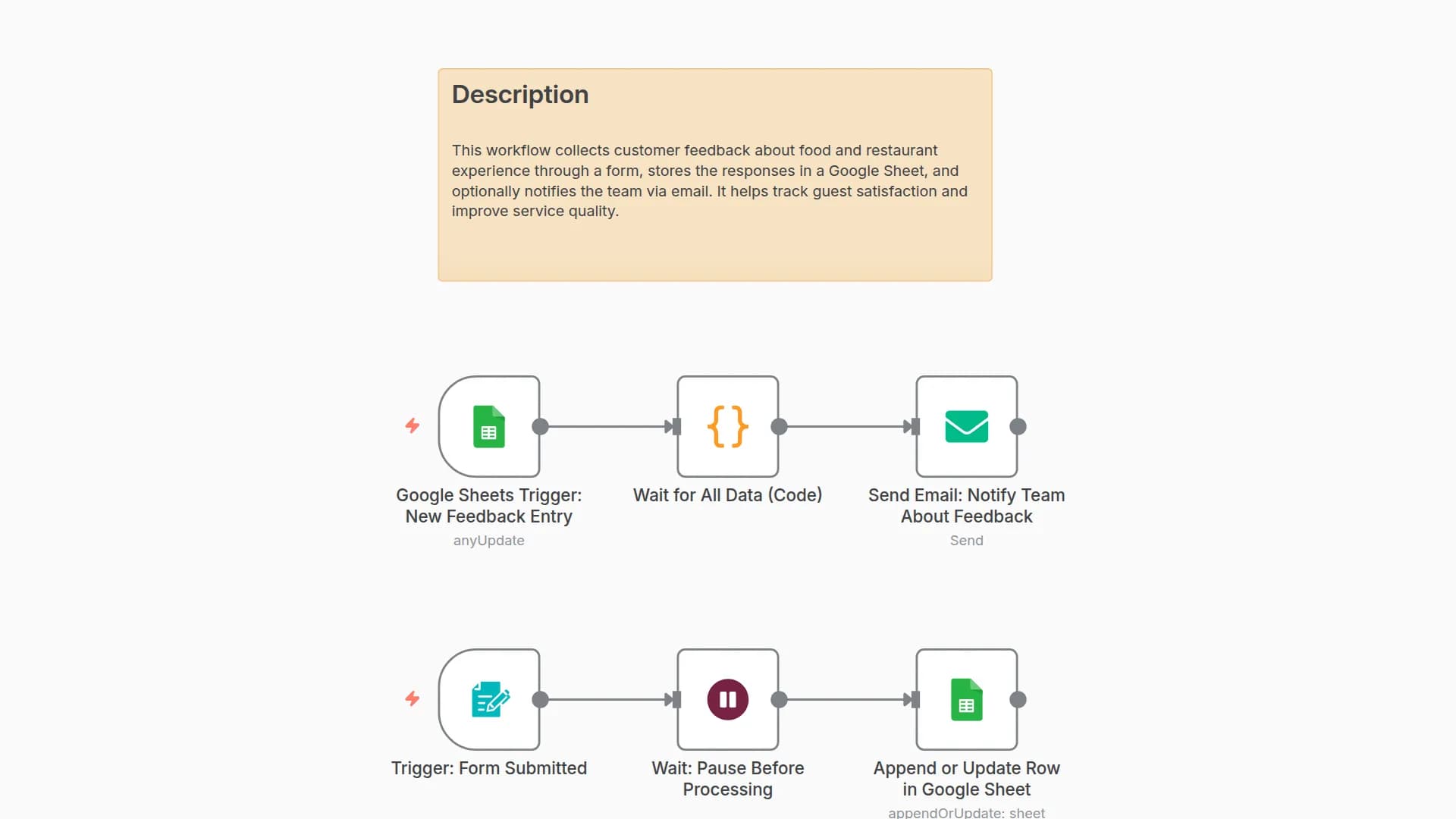
Collect & Store Restaurant Customer Feedback with Google Sheets and Email Forms
ononeclick-ai
969
60
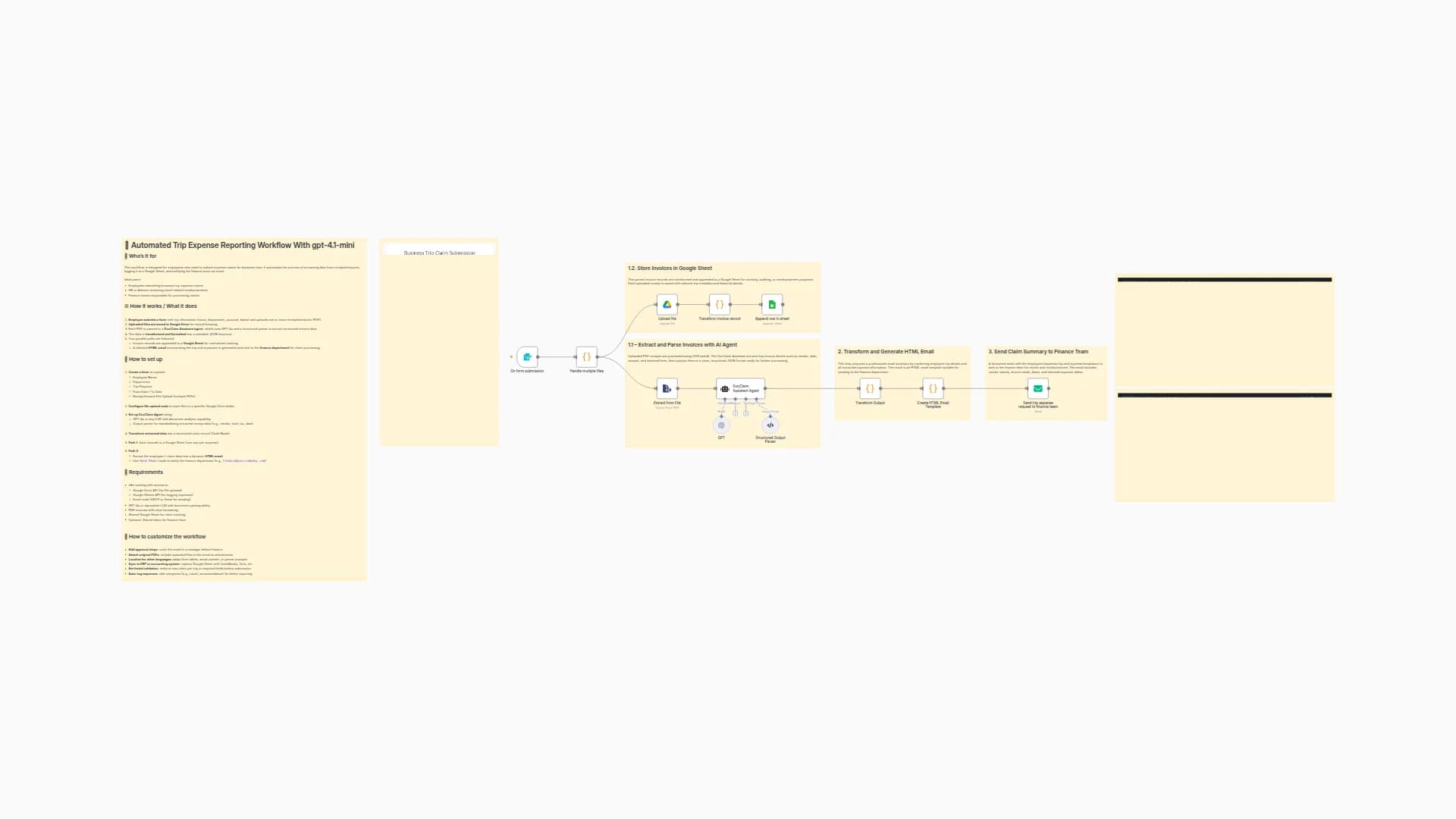
Extract Data from Trip Receipts with GPT-4.1-mini, Google Sheets & Email Notifications
trtrungtran
2.5k
141

Automated Lead-to-Client Pipeline with Google Sheets Email Notifications & Time Tracking
ziziadadel
3.8k
314
New to n8n?
Need help building new n8n workflows? Process automation for you or your company will save you time and money, and it's completely free!


