🤖 Create a Documentation Expert Bot with RAG, Gemini, and Supabase


Last edited 205 days ago
How it works
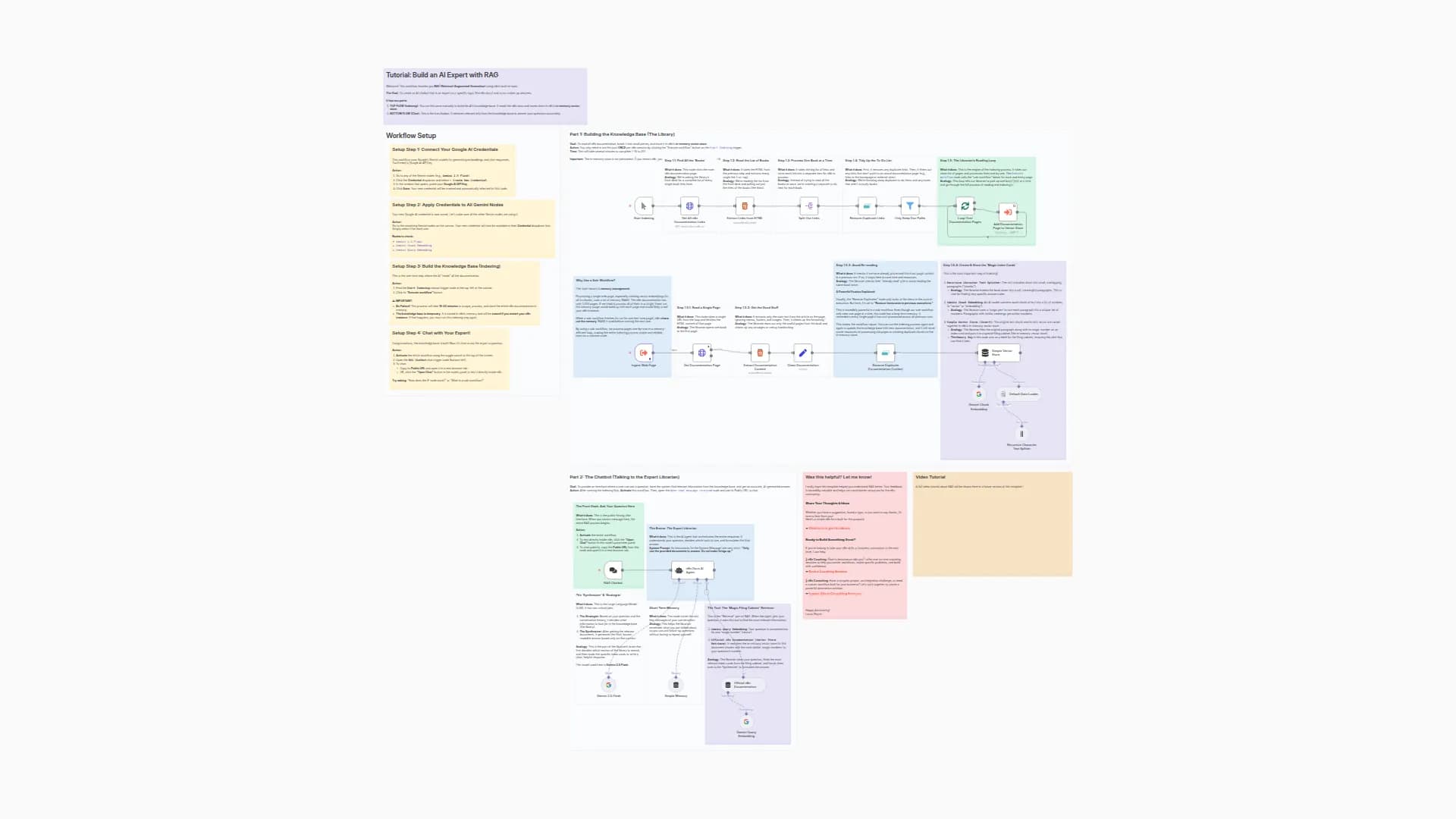
This template is a complete, hands-on tutorial for building a RAG (Retrieval-Augmented Generation) pipeline. In simple terms, you'll teach an AI to become an expert on a specific topic—in this case, the official n8n documentation—and then build a chatbot to ask it questions.
Think of it like this: instead of a general-knowledge AI, you're building an expert librarian.
The workflow is split into two main parts:
-
Part 1: Indexing the Knowledge (Building the Library)
This is a one-time process you run manually. The workflow automatically scrapes all the pages of the n8n documentation, breaks them down into small, digestible chunks, and uses an AI model to create a special numerical representation (an "embedding") for each chunk. These embeddings are then stored in your own private knowledge base (a Supabase vector store). This is like a librarian reading every book and creating a hyper-detailed index card for every paragraph. -
Part 2: The AI Agent (The Expert Librarian)
This is the chat interface. When you ask a question, the AI agent doesn't guess the answer. Instead, it uses your question to find the most relevant "index cards" (chunks) from the knowledge base it just built. It then feeds these specific, relevant chunks to a powerful language model (like Gemini) with a strict instruction: "Answer the user's question using ONLY this information." This ensures the answers are accurate, factual, and grounded in your provided documents.
Set up steps
Setup time: ~15-20 minutes
This is an advanced workflow that requires setting up a free external database. Follow these steps carefully.
-
Set up Supabase (Your Knowledge Base):
- You need a free Supabase account.
- Follow the detailed instructions in the large
Workflow Setupsticky notes in the top-right of the workflow to:- Create a new Supabase project.
- Run the provided SQL query in the SQL Editor to prepare your database.
- Get your Project URL and Service Role Key.
-
Configure n8n Credentials:
- In your n8n instance, create a new Supabase credential using the Project URL and Service Role Key from the previous step.
- Create a new Google AI credential with your Gemini API key.
-
Configure the Workflow Nodes:
- Select your new Supabase credential in the three
Supabasenodes:Your Supabase Vector Store,Official n8n DocumentationandKeep Supabase Instance Alive. - Select your new Google AI credential in the three
Gemininodes:Gemini Chunk Embedding,Gemini Query EmbeddingandGemini 2.5 Flash.
- Select your new Supabase credential in the three
-
Build the Knowledge Base:
- Find the
Start Indexingmanual trigger node at the top-left. - Click its "Execute workflow" button to start the indexing process. This will take several minutes as it scrapes and processes the entire n8n documentation. You only need to do this once.
- Find the
-
Chat with Your Expert Agent:
- Once the indexing is complete, Activate the entire workflow.
- Open the
RAG Chatbotchat trigger node and copy its Public URL. - Open the URL in a new tab and start asking questions about n8n! For example: "How does the IF node work?" or "What is a sub-workflow?".
You may also like
New to n8n?
Need help building new n8n workflows? Process automation for you or your company will save you time and money, and it's completely free!


