Email new leads from Google Sheets via Outlook on a schedule


Last edited 205 days ago
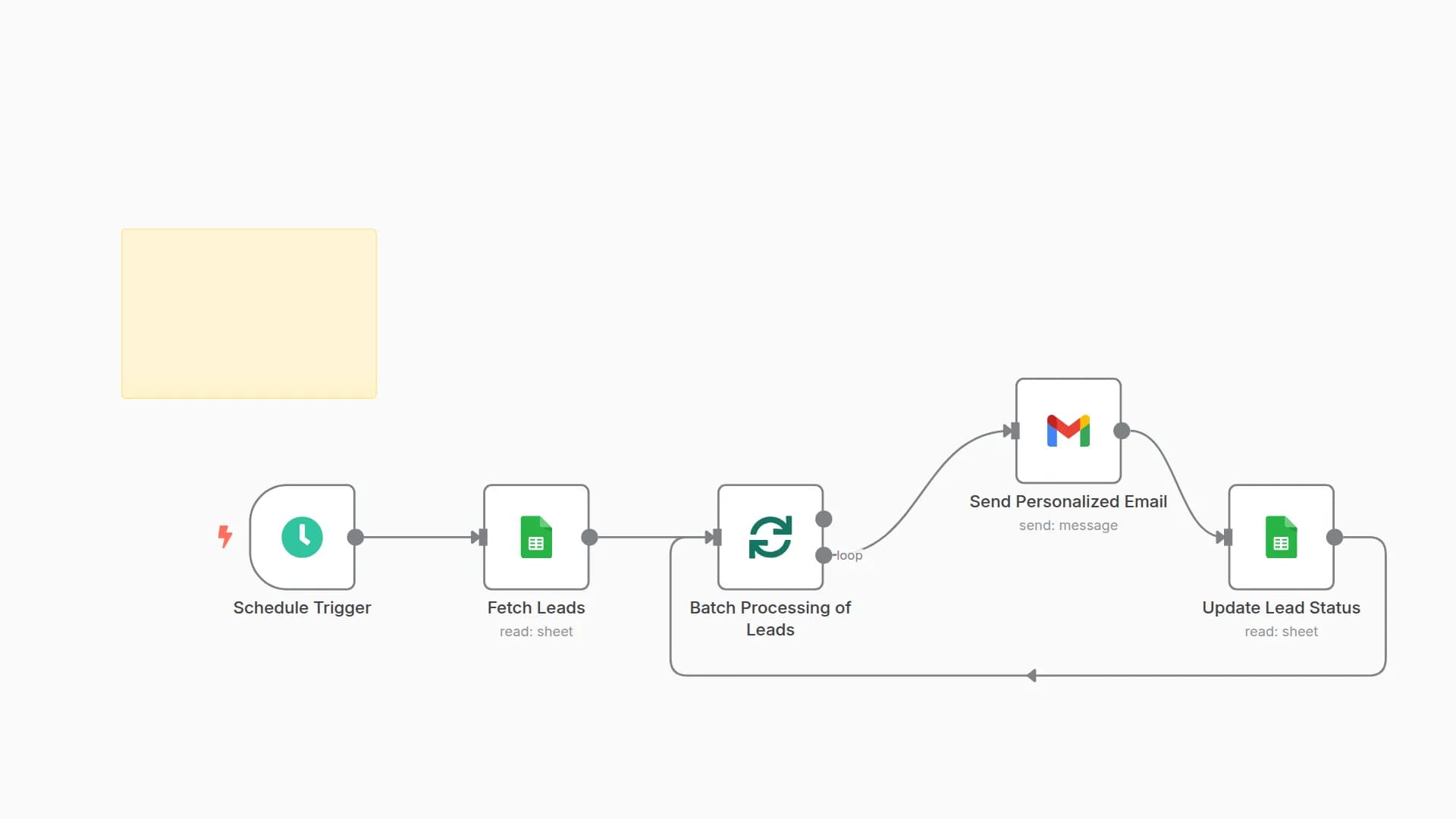
Send a templated outreach email to new leads in a Google Sheet on a daily schedule, then mark each lead as contacted so they won’t be emailed twice. Built with: Schedule Trigger → Google Sheets → Filter → Outlook Send Email → Google Sheets (append/update).
Who’s it for
- Teams that collect leads in Sheets and want automatic, once-per-lead outreach
- Solo founders/consultants running simple top-of-funnel follow-ups
- Anyone prototyping CRM-lite flows in n8n
How it works / What it does
- Schedule Trigger runs daily (e.g., 09:00).
- Get rows (Google Sheets) pulls leads from your sheet.
- Filter keeps only rows where
Contactedis empty. - Outlook – Send a message emails each remaining lead (
to = {{$json.Email}}). - Google Sheets (appendOrUpdate) writes back
Contacted = Yes(match onEmail) to prevent re-sending.
How to set up
1) Google Sheets (OAuth2)
- In n8n → Credentials → New → Google Sheets (OAuth2), sign in and grant access.
- In Get rows: select your Lead Source sheet (e.g., “New Leads”).
- In Append/Update: select the sheet you want to mark as contacted (can be the same sheet or a CRM sheet).
- Make sure your sheet has at least:
Email,Contacted(blank for new).
2) Outlook (Microsoft Graph) OAuth2
- n8n Cloud (quick connect):
- In Credentials → New → Microsoft Outlook OAuth2, choose Connect, sign in with your Microsoft account, and accept permissions.
- Self-hosted (Azure App Registration):
- Azure Portal → App registrations → New registration.
- Add redirect URL:
https://YOUR_N8N_URL/rest/oauth2-credential/callback. - API permissions (Delegated):
offline_access,Mail.Send,User.Read. Grant admin consent if required. - Create a Client secret; copy Application (client) ID and Directory (tenant) ID.
- In n8n, create Microsoft Outlook OAuth2 credential with those values and scopes:
offline_access Mail.Send openid email profile.
- In the Send a message node, select that credential and keep
Tomapped to{{$json.Email}}. - Customize Subject and Body to your brand (default provided).
Requirements
- A Google Sheet of leads with an Email column (and an optional Contacted column).
- A Microsoft account with permission to send mail via Microsoft Graph (Outlook).
How to customize the workflow
- Email content: Edit subject/body (add variables like
{{$json.FirstName}}). - Send window: Change Schedule Trigger time/interval.
- Idempotency: Use the same sheet for read+write (match on
Email) or separate source/CRM sheets. - Logging: Add a Sheet or Notion append step after send for an audit trail.
Security & best practices
- No hardcoded secrets: Always use OAuth2 credentials (Sheets & Outlook).
- Sanitize PII: If publishing, remove real spreadsheet IDs/URLs and personal emails/phone numbers.
- Sticky notes are mandatory: Add a yellow sticky note in the workflow with this description and a short setup checklist. Use neutral sticky notes for per-node tips.
Troubleshooting
- No emails sent: Ensure
Contactedis blank for new rows and the Filter checks “is empty.” - Auth errors (Outlook): Reconnect credential; confirm Graph scopes and tenant consent.
- Sheets errors: Re-select spreadsheet/tab; verify headers (
Email,Contacted). - Duplicates: Confirm Append/Update uses matching column = Email.
Tags & category
Category: Sales & CRM
Tags: outreach, follow-up, google-sheets, outlook, schedule, dedupe, cold-email
Changelog
v1.0.0 — Initial release: scheduled outreach, Outlook email, de-dupe via Contacted = Yes.
Contact
Need help customizing (personalization, rate-limits, CRM sync, bounce checks)?
You may also like

New to n8n?
Need help building new n8n workflows? Process automation for you or your company will save you time and money, and it's completely free!


