GA4 Anomaly Detection with Automated Slack & Email Alerts


Last edited 206 days ago
Who’s it for
Teams that monitor traffic, signups, or conversions in Google Analytics 4 and want automatic Slack/email alerts when a channel suddenly spikes or drops.
What it does
This n8n template pulls daily GA4 metrics, detects outliers with a rolling mean and z-score, and sends alerts with a sparkline chart. It supports per-channel analysis (e.g., sessionDefaultChannelGroup) and consolidates multiple anomalies into a single email while posting each one to Slack.
How it works
- HTTP Request (GA4 Data API) fetches
sessions,newUsers,conversions,bounceRatebydate+ channel. - Code calculates 7-day moving average and z-scores, flags anomalies, and builds QuickChart links.
- If filters on
alert === trueand optionalALERT_MEtoggle. - Slack posts an alert + chart.
- Email sends one summary email (subject + HTML table + charts).
Requirements
- GA4 OAuth2 credential in n8n.
- Slack API credential (bot with chat:write).
- Email credential (SMTP or service).
- GA4 property ID and at least several recent days of data.
Where to find your GA4 Property ID
-
In the GA UI:
- Open Google Analytics → bottom-left Admin (gear).
- In the Property column, click Property settings.
- Copy Property ID — it’s a numeric value (e.g.,
481356553).
-
From the URL (quick way):
When you’re inside the GA4 property, the URL looks like:
…/analytics/web/#/p123456789/…→ the digits afterpare your Property ID (123456789in this example). -
What not to use:
- Measurement ID (looks like
G-XXXXXXX) — that’s the data stream ID, not the property ID. - Universal Analytics IDs (
UA-XXXXX-Y) — those are legacy and won’t work with GA4 Data API.
- Measurement ID (looks like
-
In this template:
Put that numeric ID into the Set →PROPERTY_IDfield. The HTTP node pathproperties/{{ $json.PROPERTY_ID }}:runReportexpects only the number, no prefixes.
How to set up
- Open the Set (Define variables) node and fill:
PROPERTY_ID,LOOKBACK_DAYS,ALERT_PCT,Z_THRESHOLD,CHANNEL_DIM,ALERT_ME. - Connect your Google Analytics OAuth2, Slack, and Email credentials.
- In Email Send, map
Subject→{{$json.emailSubject}}and HTML body →{{$json.emailHtml}}. Keep Execute once enabled. - Run the workflow.
How to customize
- Change the moving-average window (
WINDOW/MA_WINDOW) and chart range (LAST_N_DAYS_CHART). - Swap
CHANNEL_DIM(e.g., source/medium) to analyze different dimensions. - Add/remove metrics in the GA4 request and the metrics list in the Code node.
- Tweak thresholds to reduce noise: raise
Z_THRESHOLDorALERT_PCT.
Output example
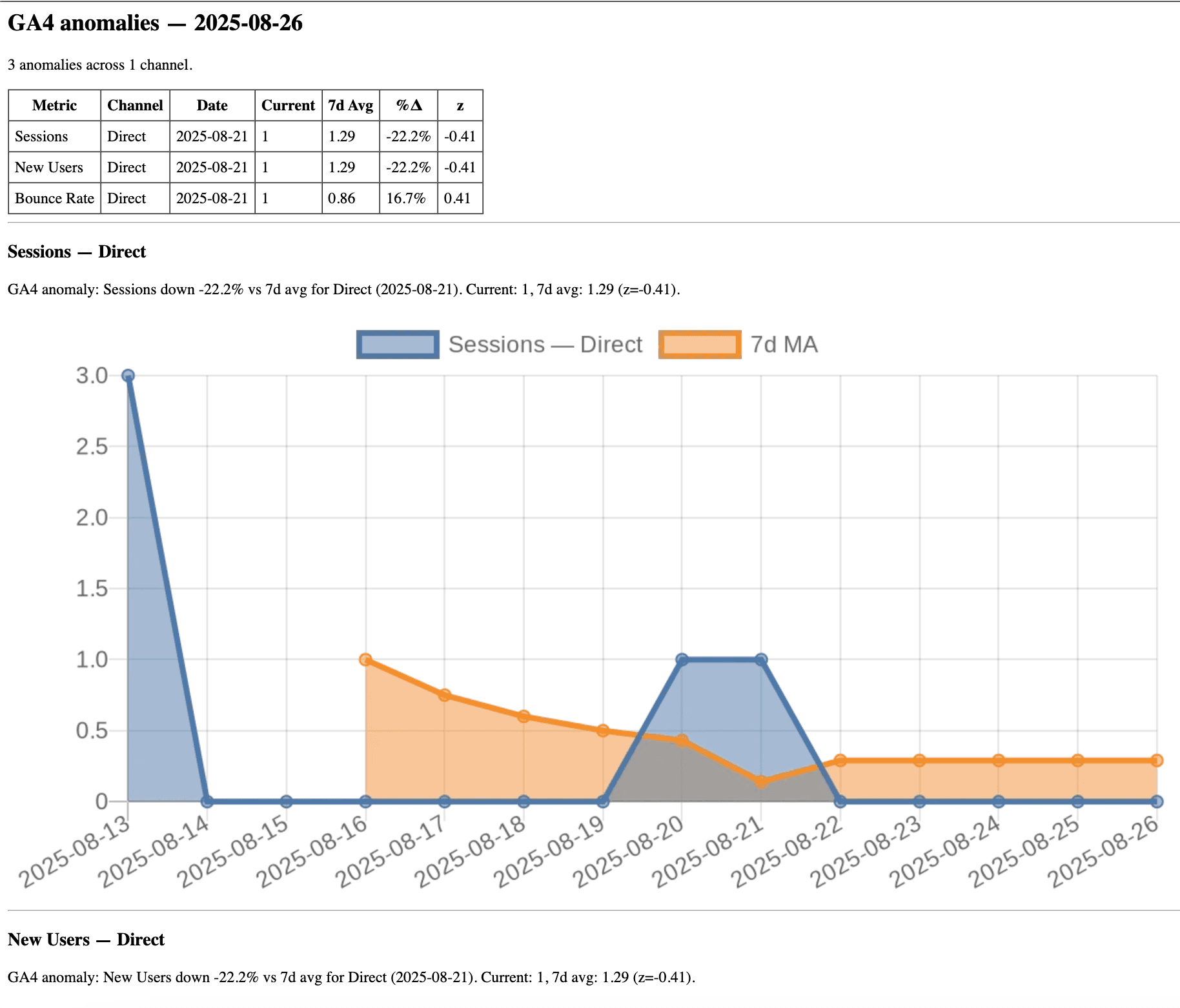
You may also like

New to n8n?
Need help building new n8n workflows? Process automation for you or your company will save you time and money, and it's completely free!


