Google Maps leads (names,emails,phones...) Apify + Airtable + Custom Emails


Last edited 206 days ago
Who is it for?
This workflow is perfect for anyone who wants to:

- Automatically collect contacts from Google Maps: emails, phone numbers, websites, social media (LinkedIn, Facebook), city, ratings, and reviews.
- Organize everything neatly in Airtable, without dealing with messy CSV exports that cause headaches.
- Send a personalized email to each lead, without writing it or hitting “send” yourself.
👉 In short, it’s the perfect tool for marketing agencies, freelancers in prospecting, or sales teams tired of endless copy-paste.
If you want to automate manual tasks, visit our French agency 0vni – Agence automatisation.
How does it work?
Here’s the pipeline:
- Scrape Google Maps with Apify (business name, email, website, phone, LinkedIn, Facebook, city, rating, etc.).
- Clean and map the data so everything is well-structured (Company, Email, Phone, etc.).
- Send everything into Airtable to build a clear, filterable database.
- Trigger an automatic email via Gmail, personalized for each lead.
👉 The result: a real prospecting machine for local businesses.
What you need before starting
✅ An Apify account (for Google Maps scraping).
✅ An Airtable account with a prepared base (see structure below).
✅ A Gmail account (to send automatic emails).
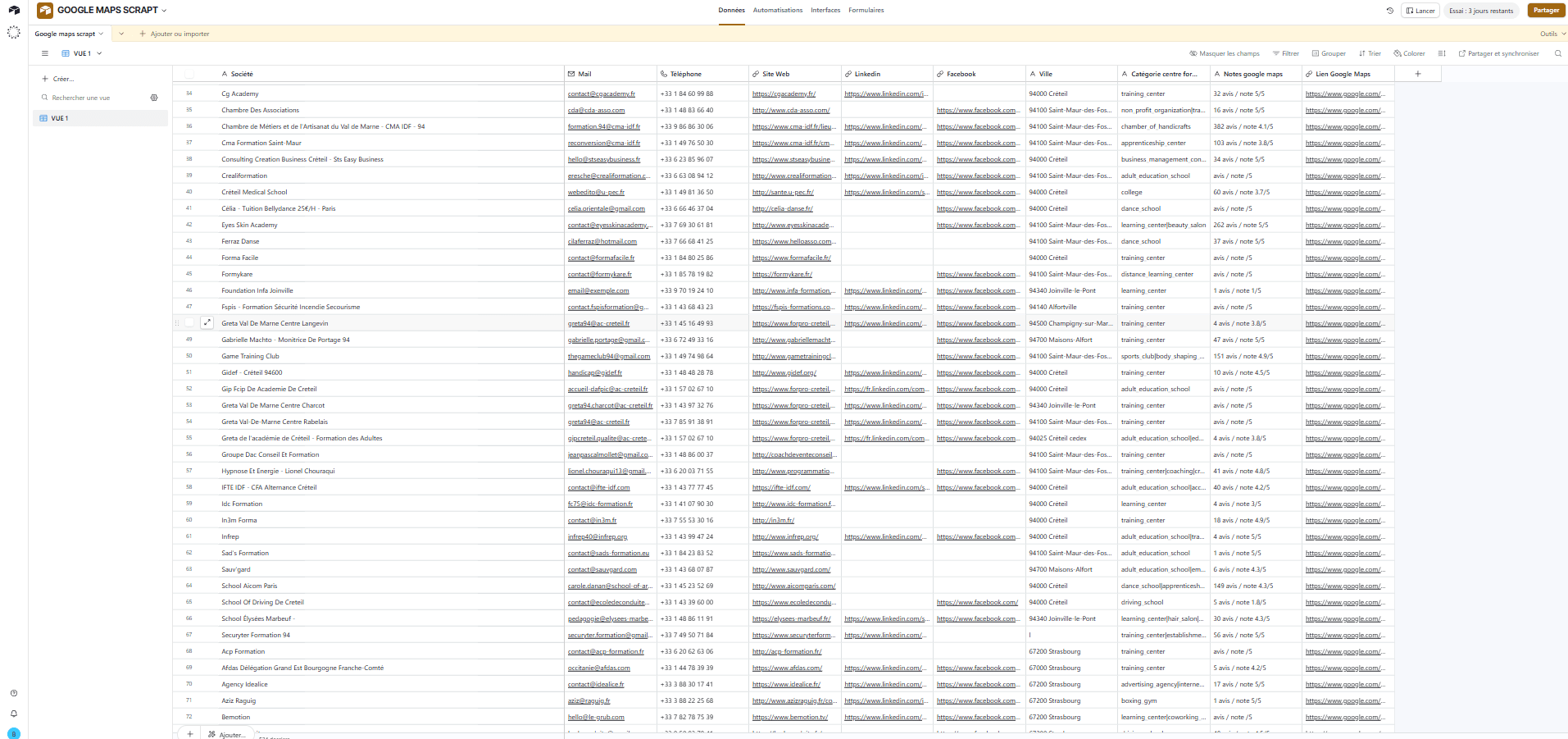
Airtable Base Structure
Your table should contain the following columns:
Company
Phone Number
Website
City
Category
Google Maps Reviews
Google Maps Link
4 As
+33 1 89 36 89 00
94100 Saint-Maur
training, center
48 reviews / 5 ★
Detailed Workflow Steps
Step 1 – GO Trigger
- Node: Manual Trigger
- Purpose: Start the workflow manually.
👉 You can replace this trigger with a Webhook (to launch the flow via a URL) or a Cron (to run it automatically on a schedule).
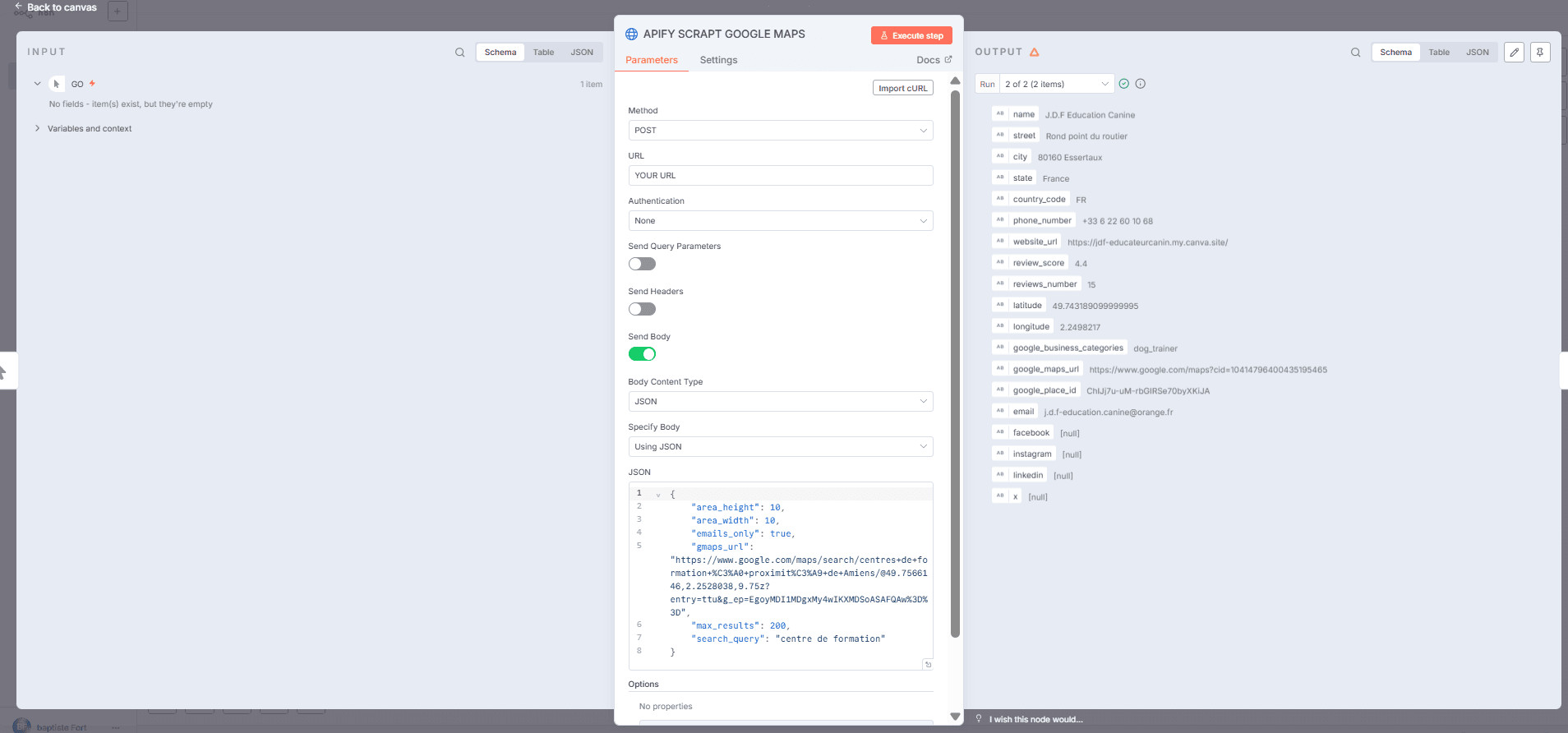
Step 2 – Scrape Google Maps
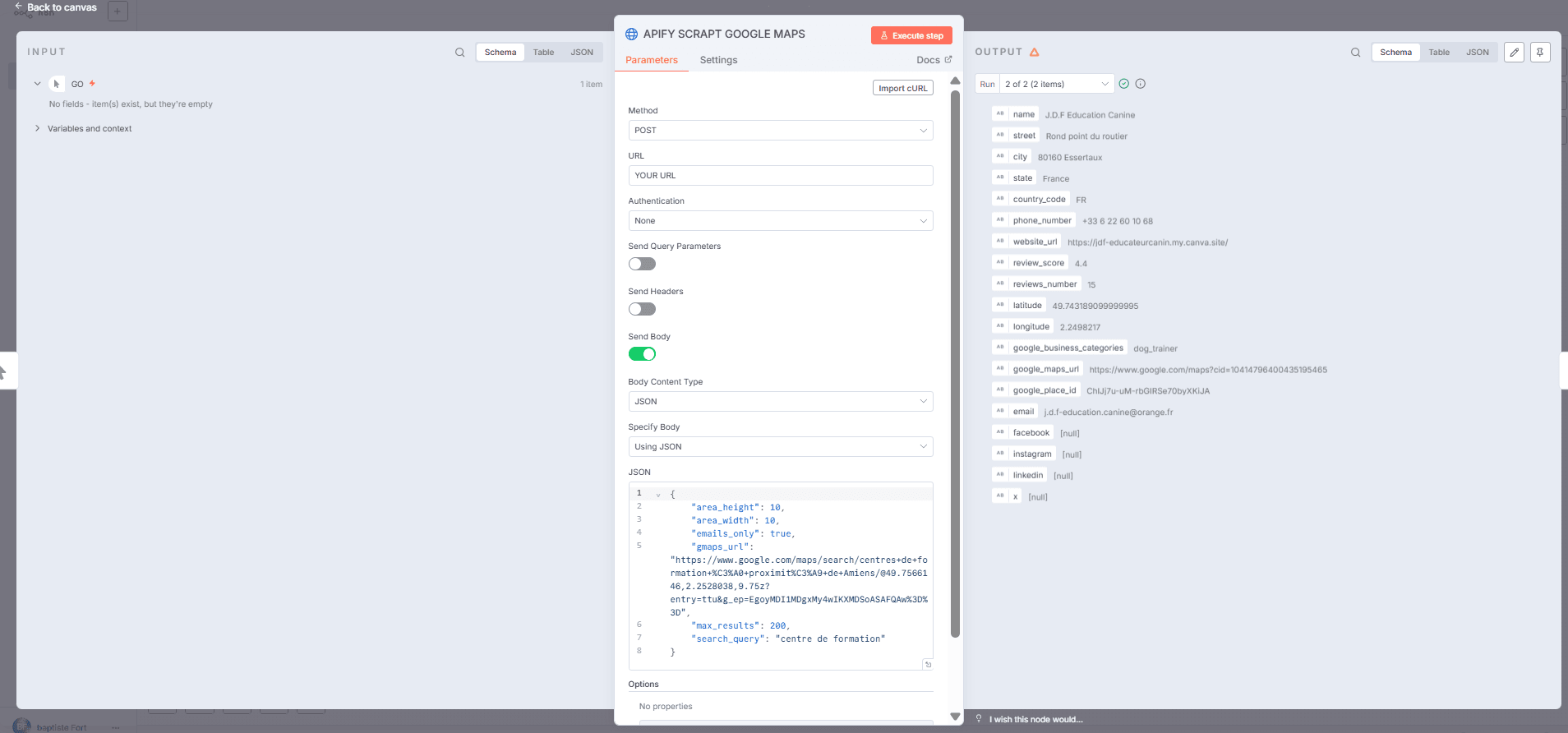
- Node: HTTP Request
- Method:
POST
Where to find the Apify URL?
- Go to Google Maps Email Leads Fast Scraper
- Click on API (top right)
- Open API Endpoints
- Copy the URL of the 3rd option: Run Actor synchronously and get dataset items
👉 This URL already includes your Apify API token.
Body Content Type: JSON
-
Body JSON (example):
-
Body Content Type: JSON
-
Body JSON (example):
{
"area_height": 10,
"area_width": 10,
"emails_only": true,
"gmaps_url": "https://www.google.com/maps/search/training+centers+near+Amiens/",
"max_results": 200,
"search_query": "training center"
}
Step 3 – Wait
- Node: Wait
- Purpose: Give the scraper enough time to return data.
- Recommended delay: 10 seconds (adjust if needed).
👉 This ensures that Apify has finished processing before we continue.
Step 4 – Mapping
- Node: Set
- Purpose: Clean and reorganize the raw dataset into structured fields that match Airtable columns.
Assignments (example):
Company = {{ $json.name }}
Email = {{ $json.email }}
Phone = {{ $json.phone_number }}
Website = {{ $json.website_url }}
LinkedIn = {{ $json.linkedin }}
Facebook = {{ $json.facebook }}
City = {{ $json.city }}
Category = {{ $json.google_business_categories }}
Google Maps Reviews = {{ $json.reviews_number }} reviews, rating {{ $json.review_score }}/5
Google Maps Link = {{ $json.google_maps_url }}
👉 Result: The data is now clean and ready for Airtable.
Step 5 – Airtable Storage
- Node: Airtable → Create Record
- Parameters:
- Credential to connect with: Airtable Personal Access Token account
- Resource: Record
- Operation: Create
- Base: Select from list → your base (example: GOOGLE MAPS SCRAPT)
- Table: Select from list → your table (example: Google maps scrapt)
- Mapping Column Mode: Map Each Column Manually
👉 To get your Base ID and Table ID, open your Airtable in the browser:
https://airtable.com/appA6eMHOoquiTCeO/tblZFszM5ubwwSYDK
Here:
- Base ID = appA6eMHOoquiTCeO
- Table ID = tblZFszM5ubwwSYDK
Authentication
- Go to: https://airtable.com/create/tokens
- Create a new Personal Access Token
- Give it access to the correct base
- Copy the token into n8n credentials (select Airtable Personal Access Token).
Field Mapping (example)
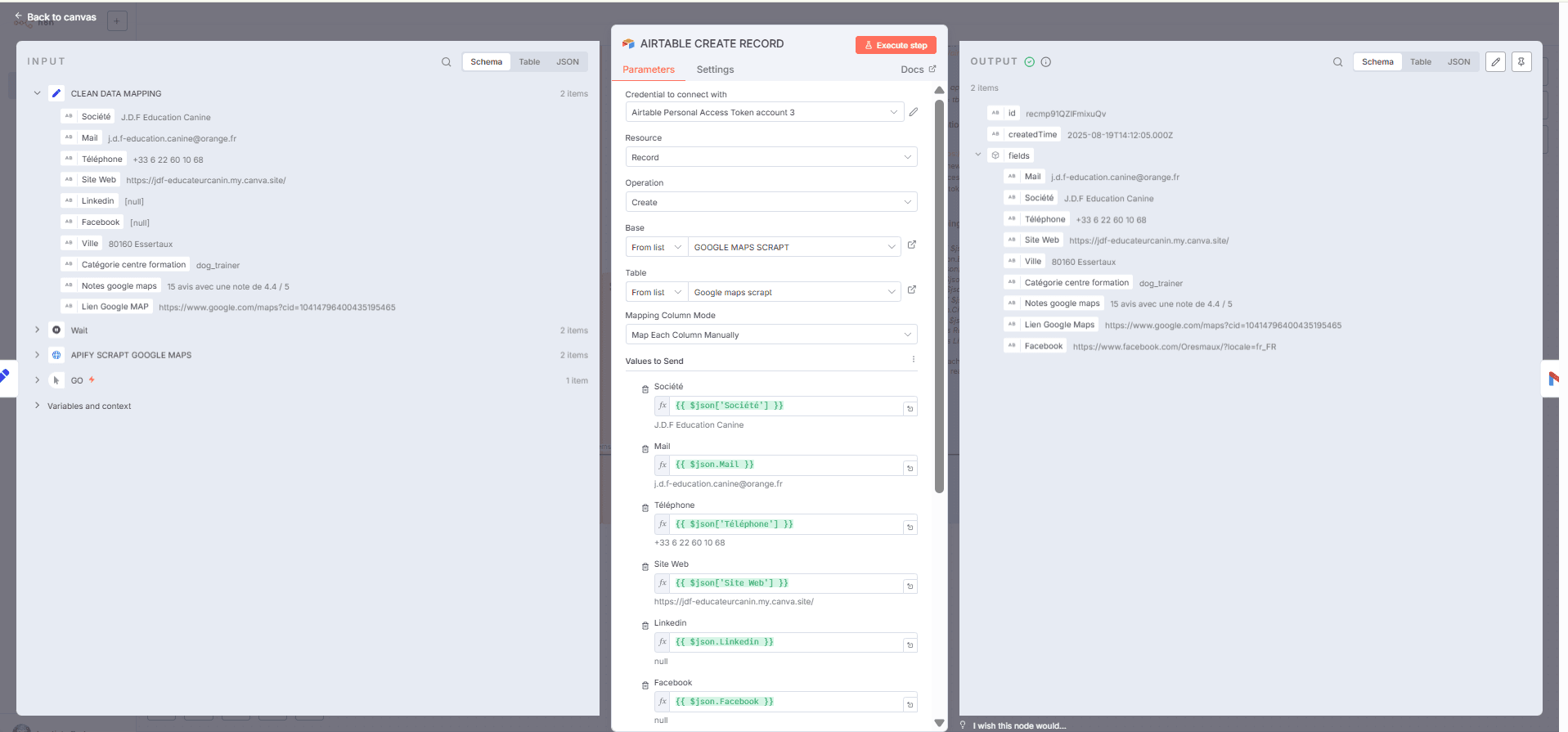
Company: {{ $json['Company'] }}
Email: {{ $json.Email }}
Phone: {{ $json['Phone'] }}
Website: {{ $json['Website'] }}
LinkedIn: {{ $json.LinkedIn }}
Facebook: {{ $json.Facebook }}
City: {{ $json.City }}
Category: {{ $json['Category'] }}
Google Maps Reviews: {{ $json['Google Maps Reviews'] }}
Google Maps Link: {{ $json['Google Maps Link'] }}
👉 Result: Each lead scraped from Google Maps is automatically saved into Airtable, ready to be filtered, sorted, or used for outreach.
Step 6 – Automatic Email
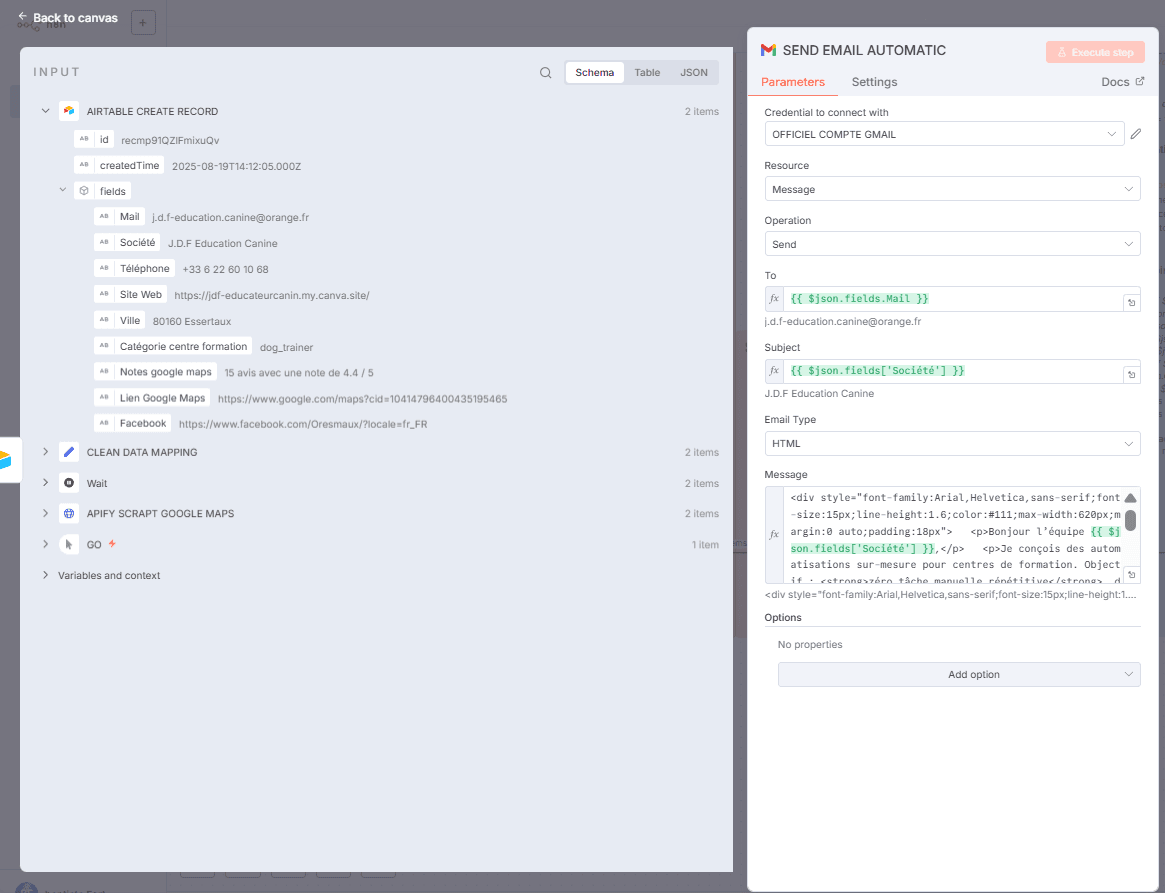
- Node: Gmail → Send Email
- Parameters:
- To: = {{ $json.fields.Email }}
- Subject: = {{ $json.fields['Company'] }}
- Message: HTML email with dynamic lead details.
Example HTML message:
Hello {{ $json.fields['Company'] }} team,
I design custom automations for training centers.
Goal: zero repetitive manual tasks, from registration to invoicing.
Details: {{ $json.fields['Company'] }} in {{ $json.fields.City }} — website: {{ $json.fields['Website'] }} — {{ $json.fields['Google Maps Reviews'] }}
Interested in a quick 15-min call to see a live demo?
👉 Result: Each contact receives a fully personalized email with their company name, city, website, and Google Maps rating.
Final Result
With just one click:
- Scrape Google Maps (Apify).
- Clean and structure the data (Set).
- Save everything into Airtable.
- Send personalized emails via Gmail.
👉 All without copy-paste, without CSV, and without Excel headaches.
You may also like
New to n8n?
Need help building new n8n workflows? Process automation for you or your company will save you time and money, and it's completely free!


