Scrape Amazon Keyboard Products with ScrapeGraphAI to Google Sheets


Last edited 206 days ago
Amazon Keyboard Product Scraper with AI and Google Sheets Integration
🎯 Target Audience
- E-commerce analysts and researchers
- Product managers tracking competitor keyboards
- Data analysts monitoring Amazon keyboard market trends
- Business owners conducting market research
- Developers building product comparison tools
🚀 Problem Statement
Manual monitoring of Amazon keyboard products is time-consuming and error-prone. This template solves the challenge of automatically collecting, structuring, and storing keyboard product data for analysis, enabling data-driven decision making in the competitive keyboard market.
🔧 How it Works
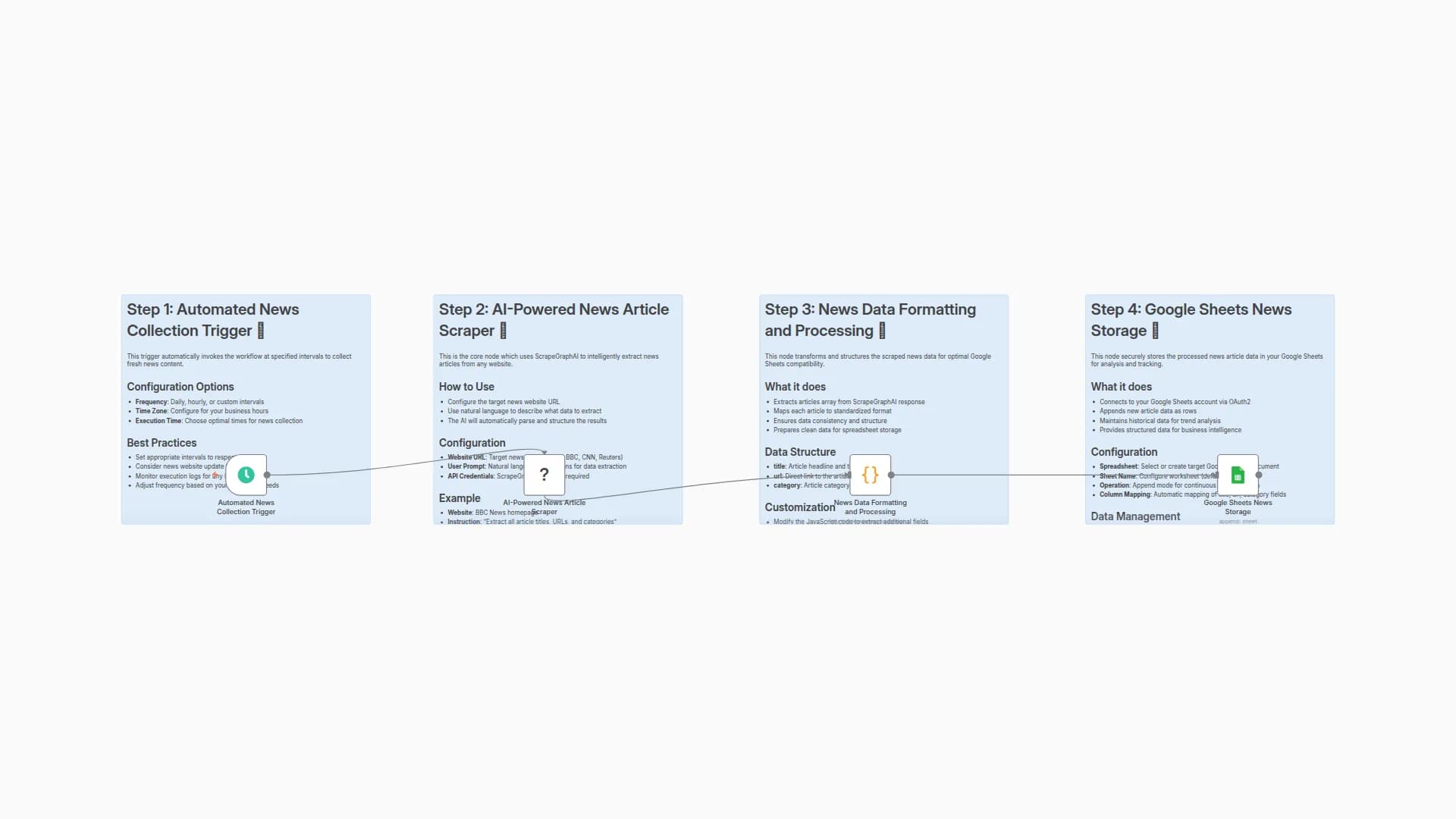
This workflow automatically scrapes Amazon keyboard products using AI-powered web scraping and stores them in Google Sheets for comprehensive analysis and tracking.
Key Components
- Scheduled Trigger - Runs the workflow at specified intervals to keep data fresh and up-to-date
- AI-Powered Scraping - Uses ScrapeGraphAI to intelligently extract product information from Amazon search results with natural language processing
- Data Processing - Transforms and structures the scraped data for optimal spreadsheet compatibility
- Google Sheets Integration - Automatically saves product data to your spreadsheet with proper column mapping
📊 Google Sheets Column Specifications
The template creates the following columns in your Google Sheets:
Column
Data Type
Description
Example
title
String
Product name and model
"Logitech MX Keys Advanced Wireless Illuminated Keyboard"
url
URL
Direct link to Amazon product page
"https://www.amazon.com/dp/B07S92QBCX"
category
String
Product category classification
"Electronics"
🛠️ Setup Instructions
Estimated setup time: 10-15 minutes
Prerequisites
- n8n instance with community nodes enabled
- ScrapeGraphAI API account and credentials
- Google Sheets account with API access
Step-by-Step Configuration
1. Install Community Nodes
# Install ScrapeGraphAI community node
npm install n8n-nodes-scrapegraphai
2. Configure ScrapeGraphAI Credentials
- Navigate to Credentials in your n8n instance
- Add new ScrapeGraphAI API credentials
- Enter your API key from ScrapeGraphAI dashboard
- Test the connection to ensure it's working
3. Set up Google Sheets Connection
- Add Google Sheets OAuth2 credentials
- Grant necessary permissions for spreadsheet access
- Select or create a target spreadsheet for data storage
- Configure the sheet name (default: "Sheet1")
4. Customize Amazon Search Parameters
- Update the
websiteUrlparameter in the ScrapeGraphAI node - Modify search terms, filters, or categories as needed
- Adjust the user prompt to extract additional fields if required
5. Configure Schedule Trigger
- Set your preferred execution frequency (daily, weekly, etc.)
- Choose appropriate time zones for your business hours
- Consider Amazon's rate limits when setting frequency
6. Test and Validate
- Run the workflow manually to verify all connections
- Check Google Sheets for proper data formatting
- Validate that all required fields are being captured
🔄 Workflow Customization Options
Modify Search Criteria
- Change the Amazon URL to target specific keyboard categories
- Add price filters, brand filters, or rating requirements
- Update search terms for different product types
Extend Data Collection
- Modify the user prompt to extract additional fields (price, rating, reviews)
- Add data processing nodes for advanced analytics
- Integrate with other data sources for comprehensive market analysis
Output Customization
- Change Google Sheets operation from "append" to "upsert" for deduplication
- Add data validation and cleaning steps
- Implement error handling and retry logic
📈 Use Cases
- Competitive Analysis: Track competitor keyboard pricing and features
- Market Research: Monitor trending keyboard products and categories
- Inventory Management: Keep track of available keyboard options
- Price Monitoring: Track price changes over time
- Product Development: Research market gaps and opportunities
🚨 Important Notes
- Respect Amazon's terms of service and rate limits
- Consider implementing delays between requests for large datasets
- Regularly review and update your scraping parameters
- Monitor API usage to manage costs effectively
- Keep your credentials secure and rotate them regularly
🔧 Troubleshooting
Common Issues:
- ScrapeGraphAI connection errors: Verify API key and account status
- Google Sheets permission errors: Check OAuth2 scope and permissions
- Data formatting issues: Review the Code node's JavaScript logic
- Rate limiting: Adjust schedule frequency and implement delays
Support Resources:
- ScrapeGraphAI documentation and API reference
- n8n community forums for workflow assistance
- Google Sheets API documentation for advanced configurations
You may also like

New to n8n?
Need help building new n8n workflows? Process automation for you or your company will save you time and money, and it's completely free!


