Send WhatsApp Bulk Messages from Google Sheets


Last edited 206 days ago
WhatsApp Bulk Message Broadcast via Google Sheets (n8n Workflow)
Use Case
This workflow enables automated bulk WhatsApp message broadcasting using the WhatsApp Business Cloud API. It pulls recipient and message data from a Google Sheet, sends templated messages (optionally with image headers), and updates the sheet with the message status. It is ideal for marketing teams, support agents, and businesses handling high-volume outreach.
Who Is This For?
- Businesses conducting WhatsApp marketing or outreach campaigns
- Customer support or notification teams
- Administrators seeking an automated, no-code message distribution system using Google Sheets
What This Workflow Does
- Triggers automatically every minute to scan for pending messages
- Fetches unsent entries from a Google Sheet
- Limits the number of messages processed per execution to comply with API usage guidelines
- Sanitizes WhatsApp numbers for proper formatting
- Sends messages using a pre-approved WhatsApp template (text and optional image)
- Marks the row as "Sent" in the sheet upon successful delivery
Workflow Breakdown (Node by Node)
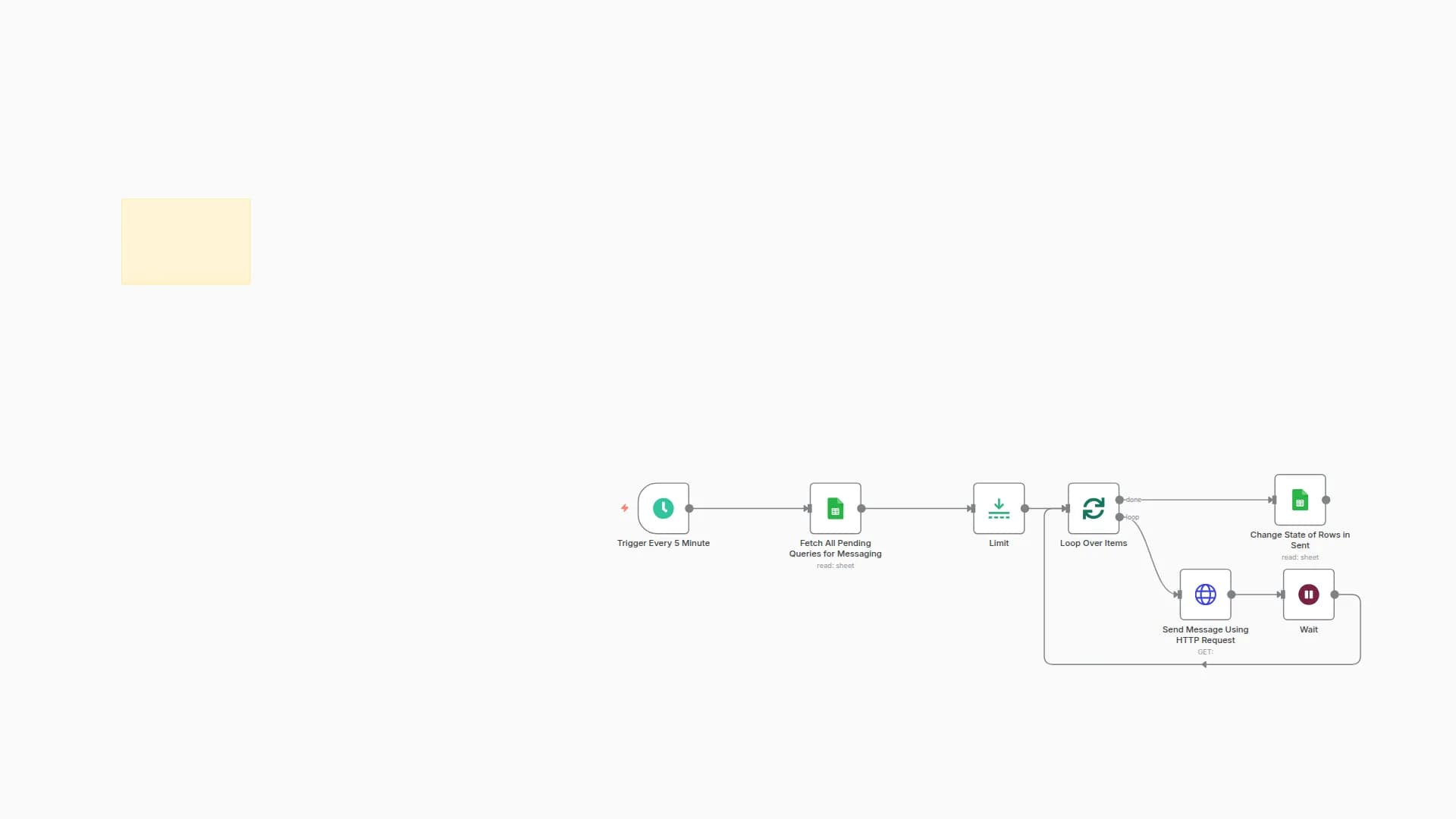
1. Trigger Every 5 Minutes
Initiates the workflow every minute using a scheduled trigger to continuously monitor pending rows.
2. Fetch All Pending Queries for Messaging
Reads rows from a Google Sheet where the Status column is empty, indicating they haven’t been processed yet.
3. Limit
Restricts processing to 2 rows per execution to manage API throughput.
4. Loop Over Items
Uses SplitInBatches to iterate through each row individually.
5. Clean WhatsApp Number
A code node that strips non-numeric characters from the WhatsApp No field, ensuring the format is valid for the API.
6. Send Message to 300 Phone No
Sends a WhatsApp message using the WhatsApp Cloud API and a pre-approved template.
Template includes:
- An image from the
Image URLcolumn (as header, optional) - Dynamic variables for the recipient's
NameandMessagefields
Template variables must be pre-defined and approved in the Meta Developer Portal, such as {{1}}, {{2}}.
7. Change State of Rows in Sent1
Updates the Status column to Sent for each successfully processed row using the row number as a reference.
Google Sheet Format
Structure your Google Sheet as shown below:
WhatsApp No
Name
Message
Image URL
Status
+8801XXXXXXX
John Doe
Hello, your order shipped
https://.../img.jpg
Leave the Status column empty for rows that need to be processed.
Requirements
- WhatsApp Business Cloud API access via Meta for Developers
- A properly structured Google Sheet as described above
- Active OAuth2 credentials configured in n8n for:
googleSheetsOAuth2ApiwhatsAppApi
Customization Options
- Update the
Limitnode to control how many rows are processed in each run - Adjust the trigger schedule (e.g., change to every 5 minutes)
- Replace the message template ID with your own custom-approved one from Meta
- Add error-handling logic (e.g.,
IForTry/Catchnodes) to log failures or setStatus = Failed
Sample Sheet Template
Workflow Highlights
- Automated execution every 1 minute
- Reads and processes only pending records
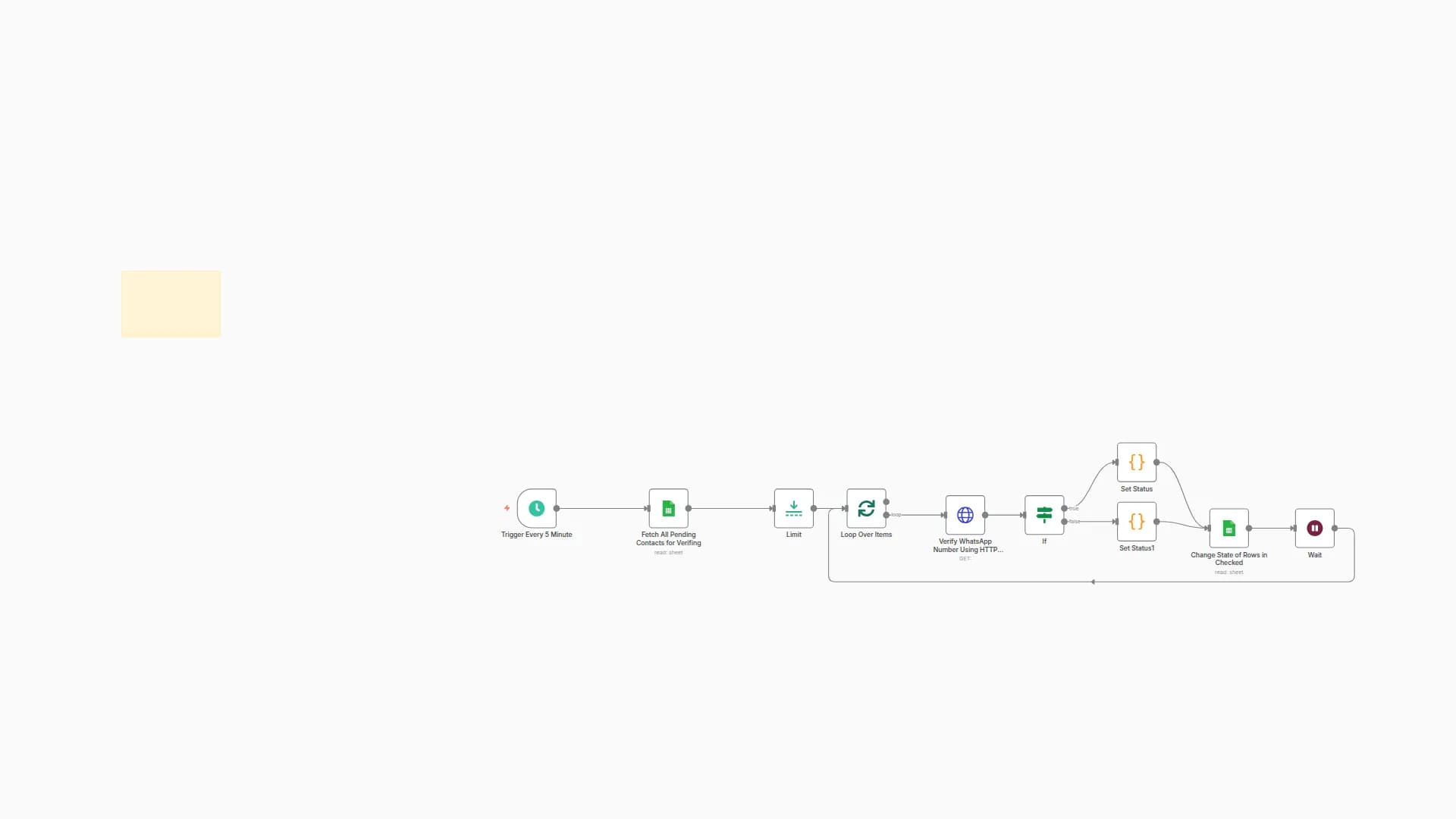
- Verifies WhatsApp numbers and delivers templated messages
- Updates Google Sheet after each attempt
Support & Community
Need help setting up or customizing the workflow?
- WhatsApp: Contact Support
- Discord: Join SpaGreen Server
- Facebook Group: SpaGreen Community
- Website: Visit SpaGreen Creative
You may also like
New to n8n?
Need help building new n8n workflows? Process automation for you or your company will save you time and money, and it's completely free!


