Smart Email Manager with Gmail, GPT-4 Classification & Auto-Responses


Last edited 205 days ago
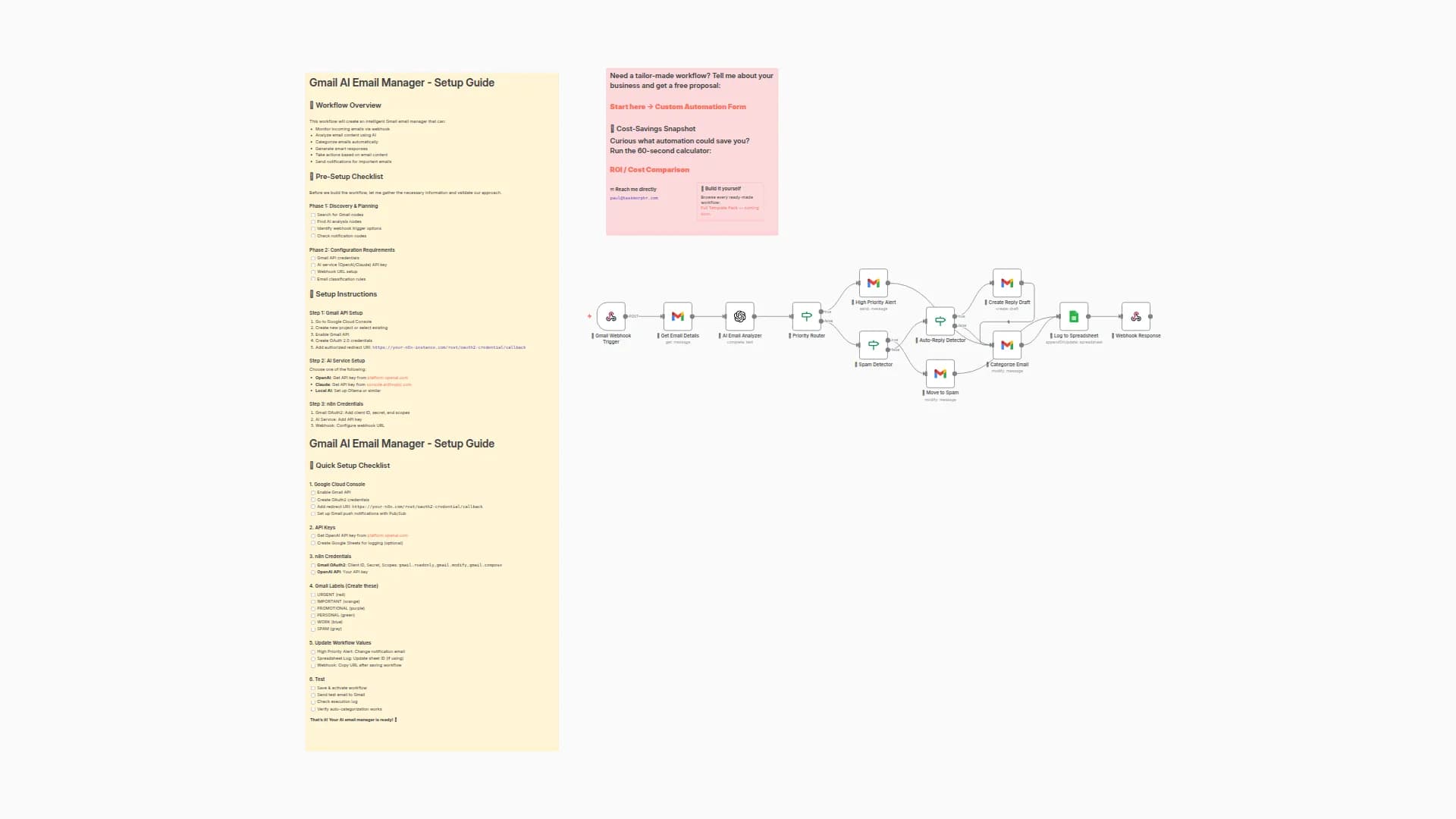
AI Email Assistant - Smart Email Processing & Response 🤖
A sophisticated n8n workflow that transforms your email management with AI-powered classification, automatic responses, and intelligent organization.
🎯 What This Workflow Does
This advanced AI email assistant automatically:
- Analyzes incoming emails using intelligent classification
- Categorizes messages by priority, urgency, and type
- Generates context-aware draft responses in your voice
- Organizes emails with smart labeling and filing
- Alerts you to urgent messages instantly
- Manages attachments with cloud storage integration
Perfect for busy professionals, customer service teams, and anyone drowning in email!
✨ Key Features
🧠 Intelligent Email Analysis
- Context-Aware Processing: Understands email threads and conversation history
- Smart Classification: Automatically categorizes by priority, urgency, and required actions
- Multi-Criteria Assessment: Evaluates response needs, follow-up requirements, team involvement
- Dynamic Label Management: Syncs with your Gmail labels for consistent organization
📝 AI-Powered Response Generation
- Professional Draft Creation: Generates contextually appropriate responses
- Tone Matching: Mirrors the formality and style of incoming emails
- Multiple Response Options: Provides alternatives for complex inquiries
- Customizable Voice: Adapts to your business communication style
🔔 Smart Notification System
- Urgent Email Alerts: Instant notifications for high-priority messages
- Telegram/Slack Integration: Get alerts where you work
- Smart Filtering: Only notifies when truly urgent
- Quick Action Links: Direct links to Gmail for immediate response
📎 Advanced Attachment Management
- Automatic Cloud Upload: Saves attachments to Google Drive
- Smart File Naming: Organized by date, sender, and content
- Duplicate Detection: Prevents redundant uploads
- File Type Filtering: Optional filtering for security
🏷️ Intelligent Organization
- Auto-Labeling: Applies relevant Gmail labels automatically
- Progress Tracking: Marks emails as "processed" or "digested"
- Priority Indicators: Visual priority levels in your inbox
- Category-Based Sorting: Groups similar emails together
🛠️ Setup Instructions
Prerequisites
- n8n instance (cloud or self-hosted)
- Gmail account with API access
- OpenAI API key (or compatible AI service)
- Google Drive account (for attachments)
- Telegram bot (optional, for alerts)
Step 1: Import the Workflow
- Download
AI_Email_Assistant_Community_Template.json - In n8n, navigate to Templates → Import from File
- Select the downloaded JSON file
- The workflow will import as inactive
Step 2: Configure Credentials
Gmail Setup:
- Create Gmail OAuth2 credentials in n8n
- Configure the following nodes:
Email_TriggerGet Conversation ThreadGet Latest Message ContentCreate Draft ResponseAssign Classification LabelMark as ProcessedGet All Gmail Labels
- Test connections to ensure proper authentication
AI Model Setup:
- Configure the
AI Language Modelnode - Options include:
- OpenAI (GPT-4, GPT-3.5-turbo)
- Anthropic Claude (recommended)
- Local LLMs via Ollama
- Add your API credentials
- Test the connection
Google Drive Setup (Optional):
- Create Google Drive OAuth2 credentials
- Configure nodes:
Upload to Google DriveCheck Existing Attachments
- Replace
YOUR_GOOGLE_DRIVE_FOLDER_IDwith your folder ID - Create a dedicated folder for email attachments
Telegram Alerts (Optional):
- Create a Telegram bot via @BotFather
- Get your chat ID
- Configure the
Send Urgent Alertnode - Replace
YOUR_TELEGRAM_CHAT_IDwith your actual chat ID
Step 3: Customize AI Instructions
Email Classification (AI Email Classifier node):
- Review the classification criteria in the system message
- Adjust urgency keywords for your business
- Modify priority levels based on your needs
- Customize category definitions
Response Generation (AI Response Generator node):
- Update the response guidelines
- Replace
[YOUR NAME]with your actual name - Adjust tone and style preferences
- Add company-specific response templates
Step 4: Configure Gmail Labels
Create Custom Labels in Gmail:
- High Priority
- Medium Priority
- Low Priority
- Needs Response
- Urgent
- Follow Up Required
- Processed (or use existing labels)
Update Label IDs:
- Run the workflow once to get label IDs
- Replace
YOUR_PROCESSED_LABEL_IDin the "Mark as Processed" node - Update any hardcoded label references
Step 5: Test and Deploy
Testing Process:
- Send yourself a test email
- Monitor the workflow execution
- Verify classification accuracy
- Check draft response quality
- Confirm labeling works correctly
- Test urgent alert functionality
Fine-Tuning:
- Adjust AI prompts based on test results
- Refine classification criteria
- Update response templates
- Modify notification preferences
Go Live:
- Activate the workflow
- Monitor initial performance
- Adjust settings as needed
📊 Email Classification System
Priority Levels
- High: Urgent matters requiring immediate attention
- Medium: Important but not time-critical
- Low: Routine or informational messages
Classification Categories
- toReply: Direct questions or requests requiring response
- urgent: Immediate business impact or crisis situations
- dateRelated: Time-sensitive events or deadlines
- attachmentsToUpload: Financial docs or important files
- requiresFollowUp: Multi-step processes or ongoing projects
- forwardToTeam: Cross-departmental or collaborative items
Response Generation Guidelines
- Professional Tone: Business casual, warm but professional
- Context Awareness: Considers email thread history
- Structured Responses: Clear paragraphs with actionable next steps
- Placeholder System: Uses
[PLACEHOLDER]for missing information - Alternative Options: Provides multiple response choices for complex inquiries
🔧 Advanced Customization
File Type Filtering
// In Get Specific File Types node, modify:
if (mimeType === 'application/pdf' ||
    mimeType === 'text/xml' ||
    mimeType === 'image/jpeg') {
    // Process file
}
Custom Urgency Keywords
Update the AI classifier prompt with your business-specific urgent terms:
- Keywords: "URGENT", "EMERGENCY", "CRITICAL", "ASAP", "IMMEDIATE"
- Custom terms: "CLIENT ESCALATION", "SYSTEM DOWN", "LEGAL DEADLINE"
Response Templates
Customize the response generator with your company voice:
- Greeting style: "Hi [Name]" vs "Dear [Name]"
- Closing: "Best Regards" vs "Thank you" vs "Cheers"
- Company-specific phrases and terminology
Integration Options
- CRM Systems: Add nodes to create tasks in your CRM
- Project Management: Auto-create tickets in Jira, Asana, etc.
- Calendar Integration: Schedule follow-ups automatically
- Slack/Teams: Alternative notification channels
🚨 Troubleshooting
Common Issues
1. Gmail Authentication Errors
- Verify OAuth2 credentials are active
- Check Gmail API quotas
- Ensure proper scopes are configured
2. AI Classification Inconsistency
- Review and refine classification prompts
- Add more specific examples
- Adjust confidence thresholds
3. Response Generation Problems
- Validate AI model configuration
- Check API key and quotas
- Test with simpler email examples
4. Attachment Upload Failures
- Verify Google Drive permissions
- Check folder ID configuration
- Ensure sufficient storage space
5. Missing Notifications
- Test Telegram bot configuration
- Verify chat ID is correct
- Check urgency classification logic
Performance Optimization
- Rate Limiting: Gmail has API quotas - monitor usage
- Batch Processing: Workflow processes one email at a time
- Error Handling: Built-in retry logic for reliability
- Resource Management: Monitor AI API costs and usage
📈 Best Practices
1. Email Management
- Regular Monitoring: Review classifications weekly
- Label Hygiene: Keep Gmail labels organized
- Feedback Loop: Manually correct misclassifications
- Archive Strategy: Set up auto-archiving for processed emails
2. AI Optimization
- Prompt Engineering: Continuously refine AI instructions
- Example Training: Add specific examples for your business
- Context Limits: Monitor token usage and costs
- Model Selection: Choose appropriate AI model for your needs
3. Security Considerations
- Credential Management: Regularly rotate API keys
- Data Privacy: Review what data is sent to AI services
- Access Control: Limit workflow access to authorized users
- Audit Logging: Monitor workflow executions
4. Workflow Maintenance
- Regular Updates: Keep n8n and node versions current
- Backup Strategy: Export workflow configurations regularly
- Documentation: Keep setup notes and customizations documented
- Testing: Test major changes in development environment first
🤝 Contributing to the Community
This workflow template demonstrates:
- Comprehensive AI Integration: Multiple AI touchpoints working together
- Production-Ready Architecture: Error handling, retry logic, and monitoring
- Extensive Documentation: Clear setup and customization guidance
- Flexible Configuration: Adaptable to different business needs
- Best Practice Examples: Security, performance, and maintenance considerations
📄 License & Support
This workflow is provided free to the n8n community under MIT License.
Community Resources:
- n8n Community Forum for questions
- GitHub Issues for bug reports
- Documentation updates welcome
Professional Support:
For enterprise deployments or custom modifications, consider:
- n8n Cloud for managed hosting
- Professional services for complex integrations
- Custom AI model training for specific use cases
Transform your email workflow today! 🚀
This AI Email Assistant reduces email processing time by up to 90% while ensuring no important message goes unnoticed. Perfect for busy professionals who want to stay responsive without being overwhelmed by their inbox.
You may also like
New to n8n?
Need help building new n8n workflows? Process automation for you or your company will save you time and money, and it's completely free!


