Store AI-Generated Images in AWS S3: OpenAI Image Creation & Cloud Storage


Last edited 206 days ago
Automating AWS S3 Operations with n8n: Buckets, Folders, and Files
Watch the demo video below:
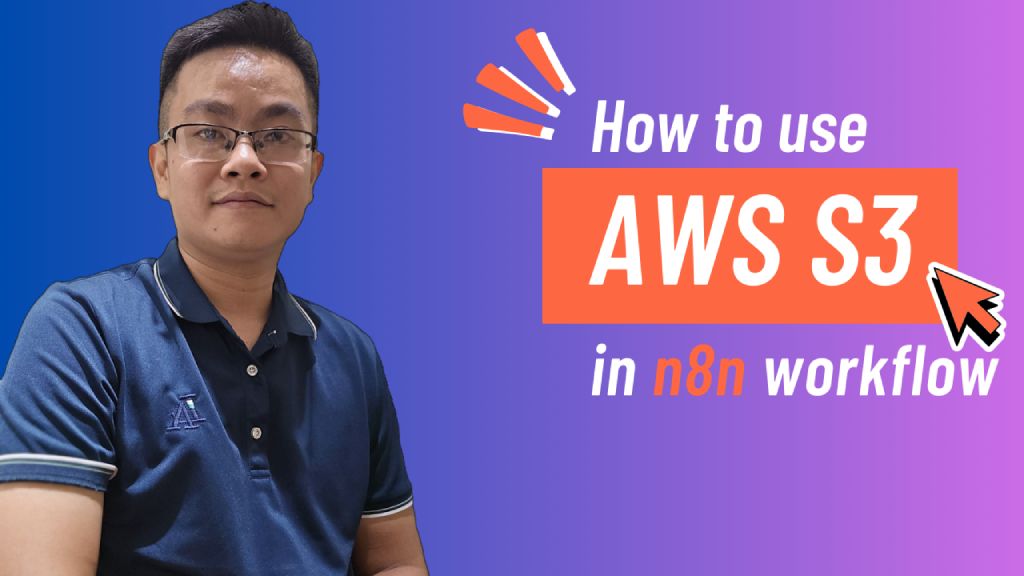
This tutorial walks you through setting up an automated workflow that generates AI-powered images from prompts and securely stores them in AWS S3. It leverages the new AI Tool Node and OpenAI models for prompt-to-image generation.
Who’s it for
This workflow is ideal for:
- Designers & marketers who need quick, on-demand AI-generated visuals.
- Developers & automation builders exploring AI-driven workflows integrated with cloud storage.
- Educators or trainers creating tutorials or exercises on AI image generation.
- Businesses looking to automate image content pipelines with AWS S3 storage.
How it works / What it does
- Trigger: The workflow starts manually when you click “Execute Workflow”.
- Edit Fields: You can provide input fields such as image description, resolution, or naming convention.
- Create AWS S3 Bucket: Automatically creates a new S3 bucket if it doesn’t exist.
- Create a Folder: Inside the bucket, a folder is created to organize generated images.
- Prompt Generation Agent: An AI agent generates or refines the image prompt using the OpenAI Chat Model.
- Generate an Image: The refined prompt is used to generate an image using AI.
- Upload File to S3: The generated image is uploaded to the AWS S3 bucket for secure storage.
This workflow showcases how to combine AI + Cloud Storage seamlessly in an automated pipeline.
How to set up
- Import the workflow into n8n.
- Configure the following credentials:
- AWS S3 (Access Key, Secret Key, Region).
- OpenAI API Key (for Chat + Image models).
- Update the Edit Fields node with your preferred input fields (e.g., image size, description).
- Execute the workflow and test by entering a sample image prompt (e.g., “Futuristic city skyline in watercolor style”).
- Check your AWS S3 bucket to verify the uploaded image.
Requirements
- n8n (latest version with AI Tool Node support).
- AWS account with S3 permissions to create buckets and upload files.
- OpenAI API key (for prompt refinement and image generation).
- Basic familiarity with AWS S3 structure (buckets, folders, objects).
How to customize the workflow
- Custom Buckets: Replace the auto-create step with an existing S3 bucket.
- Image Variations: Generate multiple image variations per prompt by looping the image generation step.
- File Naming: Adjust file naming conventions (e.g., timestamp, user input).
- Metadata: Add metadata such as tags, categories, or owner info when uploading to S3.
- Alternative Storage: Swap AWS S3 with Google Cloud Storage, Azure Blob, or Dropbox.
- Trigger Options: Replace manual trigger with Webhook, Form Submission, or Scheduler for automation.
✅ This workflow is a hands-on example of how to combine AI prompt engineering, image generation, and cloud storage automation into a single streamlined process.
You may also like

New to n8n?
Need help building new n8n workflows? Process automation for you or your company will save you time and money, and it's completely free!


