Task Deadline Reminders with Google Sheets, ChatGPT, and Gmail


Categories
Created by
yaYar Malik (Asfandyar)Last edited 205 days ago
Intro
This template is for project managers, team leads, or anyone who wants to automatically remind teammates of tasks due today—no manual copy‑and‑paste required.
How it works
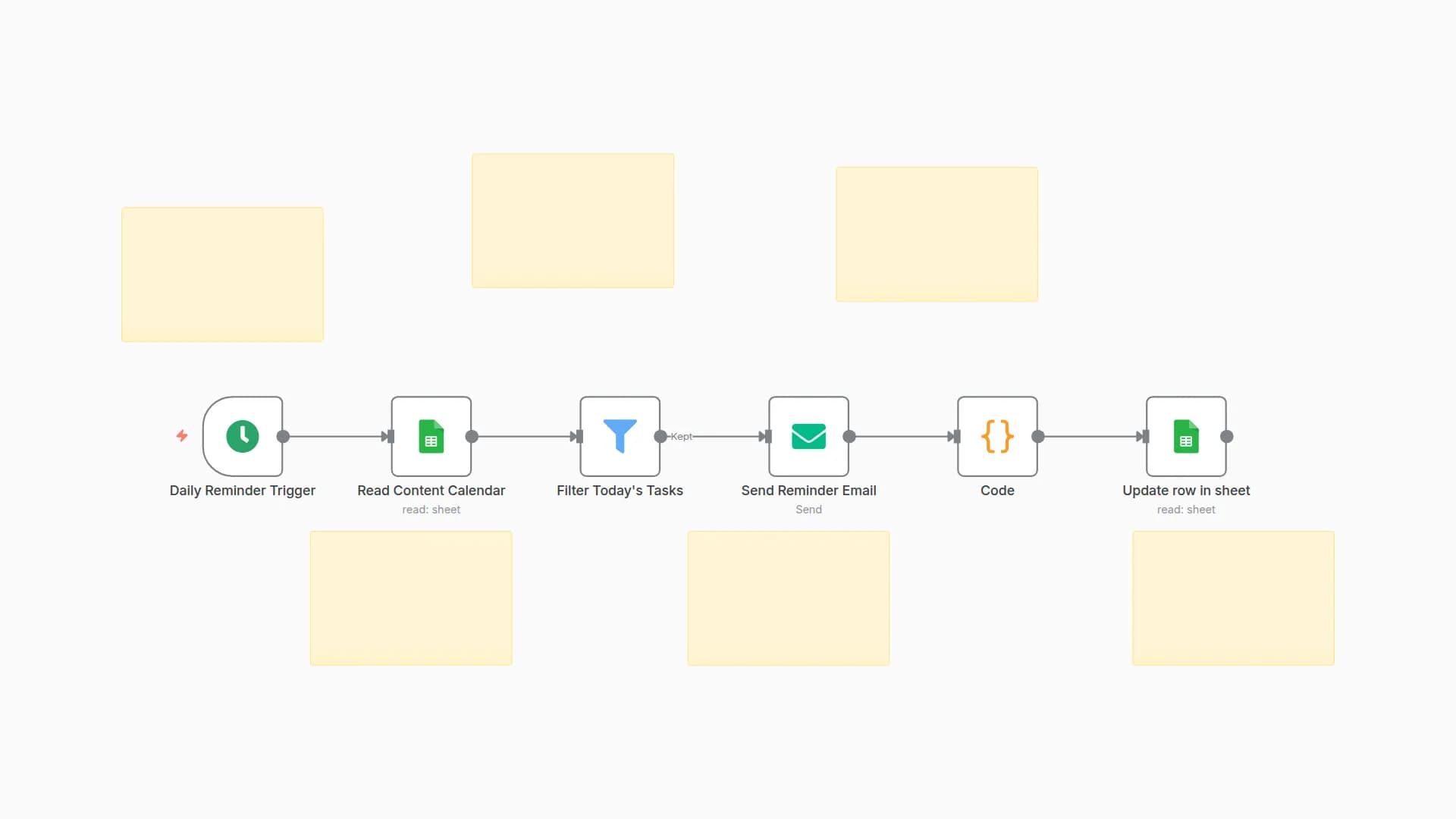
- Schedule Trigger runs every morning at 8 AM.
- Google Sheets node reads your “Tasks” sheet.
- If node filters rows where Due Date = today.
- Summarize (ChatGPT HTTP Request) generates a friendly reminder per person.
- Message a model sends the prompt to your ChatGPT Assistant and returns the AI response.
- Send a message (Gmail) emails each assignee their personalized reminder.
Required Google Sheet Structure
Column Name
Type
Example
Notes
Name
string
Alice Johnson
Person to remind
string
Recipient email address
Task
string
Submit quarterly report
Task description
Due Date
date
2025‑07‑29
Format: YYYY‑MM‑DD
Detailed Setup Steps
- Google Sheets
- Create your sheet with the columns above.
- In n8n → Credentials, add Google Sheets API (do not include real sheet IDs in the name).
- ChatGPT Assistant
- In the OpenAI Dashboard → Assistants, click Create Assistant.
- Choose a model (e.g.,
gpt-4), copy the Assistant ID. - In n8n → Credentials → OpenAI, add your API Key and Assistant ID.
- Gmail
- In n8n → Credentials → Gmail (OAuth2 or SMTP), connect your account without embedding your real address in the credential name.
- Import & Configure
- Export this workflow’s JSON (three‑dot menu → Export).
- Paste it under Template Code in the Creator form.
- In each node, select your Google Sheets, OpenAI, and Gmail credentials.
- Sticky Notes
- A note on the Schedule node: “Set your desired run time.”
- A note on the ChatGPT node: “Customizes reminder text.”
- A note on the Gmail node: “Sends reminder email.”
Customization Guidance
- Change schedule: edit the Cron expression in Schedule Trigger.
- Adjust tone: modify the system prompt in your ChatGPT Assistant.
- Email format: update Subject and Body in the Gmail node.
- Batch processing: insert a SplitInBatches node before Summarize for large sheets.
Troubleshooting
- Ensure your Google Sheet is shared with the connected service account.
- Verify Due Date format (
YYYY‑MM‑DD). - If ChatGPT fails, check your API key and quota.
Security & Best Practices
- Do not hard‑code API keys, sheet IDs, or real emails.
- Use n8n Credentials or environment variables only.
- Remove any private information before submitting.
You may also like

New to n8n?
Need help building new n8n workflows? Process automation for you or your company will save you time and money, and it's completely free!


