Transfer Files from FTP Server to Google Drive

Last edited 206 days ago
FTP to Google Drive Transfer Template
What This Template Does
This workflow automatically transfers files from an FTP server to Google Drive. It's perfect for:
- Backing up files from remote servers
- Migrating data from FTP to cloud storage
- Automating file synchronization tasks
- Creating scheduled backups of server content
How It Works
The workflow follows these steps:
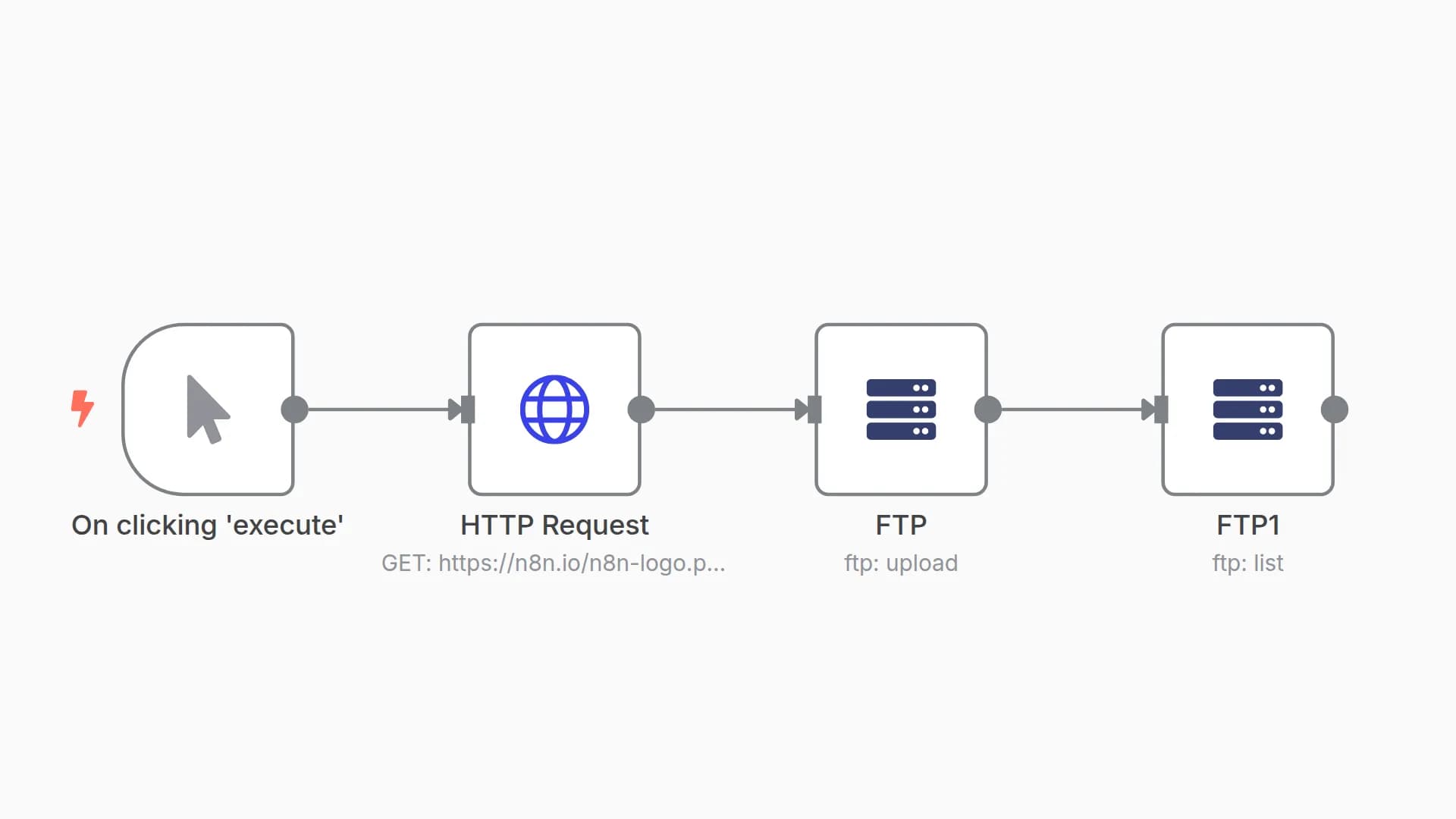
- Manual Trigger - You start the process by clicking "Execute"
- Lists FTP Directory - Scans the specified FTP folder for all items
- Filters Files Only - Separates actual files from directories (folders)
- Downloads Files - Retrieves each file as binary data from the FTP server
- Uploads to Google Drive - Stores all downloaded files in your specified Google Drive folder
Requirements
Before using this template, you'll need:
- FTP Server Access: Server address, username, and password
- Google Drive Account: With OAuth2 authentication set up in n8n
- n8n Instance: Self-hosted or cloud version
Setup Instructions
Step 1: Configure FTP Credentials
- In n8n, go to Settings → Credentials
- Create a new FTP credential
- Enter your FTP server details:
- Host: Your FTP server address
- Port: Usually 21 for FTP
- Username: Your FTP username
- Password: Your FTP password
- Test the connection and save
Step 2: Set Up Google Drive Authentication
- Create a new Google Drive OAuth2 credential
- Follow n8n's Google Drive setup guide:
- Create a Google Cloud project
- Enable Google Drive API
- Create OAuth2 credentials
- Add your n8n callback URL
- Authorize the connection in n8n
Step 3: Configure the Workflow
-
Update FTP Path:
- Open the "List FTP Directory" node
- Change the
pathparameter from/_instalkito your desired FTP folder
-
Set Google Drive Folder:
- Open the "Upload to Google Drive" node
- Replace the
folderIdwith your target Google Drive folder ID - To find folder ID: Open the folder in Google Drive and copy the ID from the URL
-
Assign Credentials:
- Ensure both FTP nodes use your FTP credential
- Assign your Google Drive credential to the upload node
How to Use
- Test First: Run the workflow manually with a few test files
- Monitor Execution: Check the execution log for any errors
- Verify Upload: Confirm files appear in your Google Drive folder
- Schedule (Optional): Add a schedule trigger if you want automatic runs
Customization Options
Filter Specific File Types
Add a condition after "Filter Files Only" to process only certain file extensions:
{{ $json.name.endsWith('.pdf') || $json.name.endsWith('.jpg') }}
Add Error Handling
Insert error-handling nodes to manage failed downloads or uploads gracefully.
Organize by Date
Modify the Google Drive upload to create date-based folders automatically.
File Size Limits
Add checks for file size before attempting upload (Google Drive has limits).
Troubleshooting
Common Issues:
- FTP Connection Failed: Check server address, port, and credentials
- Google Drive Upload Error: Verify OAuth2 setup and folder permissions
- Files Not Found: Ensure the FTP path exists and contains files
- Large Files: Consider Google Drive's file size limitations (15GB for free accounts)
Tips:
- Test with small files first
- Check n8n execution logs for detailed error messages
- Ensure your Google Drive has sufficient storage space
- Verify FTP server allows multiple concurrent connections
Security Notes
- Never hardcode credentials in the workflow
- Use n8n's credential system for all authentication
- Consider using SFTP instead of FTP for better security
- Regularly rotate your FTP passwords
- Review Google Drive sharing permissions
Next Steps
Once you have this basic transfer working, you might want to:
- Add email notifications for successful/failed transfers
- Implement file deduplication checks
- Create logs of transferred files
- Set up automatic cleanup of old files
- Add file compression before upload
You may also like


New to n8n?
Need help building new n8n workflows? Process automation for you or your company will save you time and money, and it's completely free!


