UptimeRobot Alerts to Telegram with Visual Verification


Last edited 206 days ago
UptimeRobot Alerts to Telegram with Visual Verification
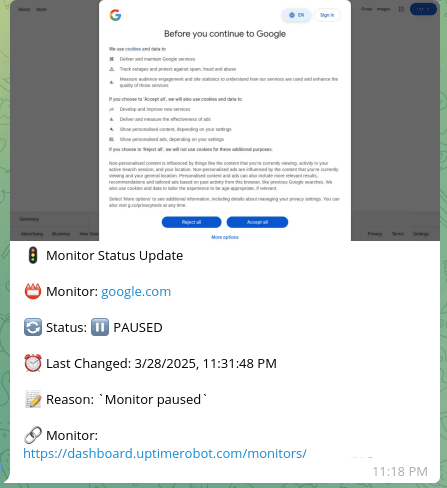
Automatically sends Telegram notifications with optional screenshots when monitors change status (✅ UP/🔴 DOWN/⏸️ PAUSED)
Example Message in Telegram:
Who Is This For?
Teams or individuals needing to:
- Get alerts when websites/services go down
- Verify outages with visual screenshots
- Monitor infrastructure from Telegram
What Does This Workflow Solve?
🚨 Missed Alerts: Get immediate notifications in Telegram
🖼️ Visual Verification: Optional screenshot confirmation of outages
📊 Status Tracking: Clear records of when issues began/resolved
🔗 One-Click Access: Direct links to affected monitors
⏱️ Time Savings: No need to check dashboards manually
Setup Guide
1. Pre-Requisites
- UptimeRobot Account: With at least one monitor configured
- Gmail Account: To receive alert notifications
- Telegram Account: To receive alerts (mobile/desktop app recommended)
- (Optional) ScreenshotMachine free/paid account
2. Credentials Setup
Make sure your n8n instance is connected with:
- Gmail Account (via OAuth2)
- UptimeRobot API (via API key)
- Telegram Bot (via bot token)
- (Optional) ScreenshotMachine (via customer key)
3. Configure Your n8n Workflow Nodes
1. Alert Trigger
- Gmail Trigger: Configure to watch for emails from
[[email protected]](/cdn-cgi/l/email-protection) - Set appropriate polling interval (e.g., every 5 minutes)
2. Monitor Configuration
- Conf Node: Set your preferences:
{
  "take_screenshot": true,
  "screenshotmachine_secret": "your-secret-here",
  "screenshotmachine_device": "desktop",
  "screenshotmachine_dimension": "1366xfull",
  "screenshotmachine_format": "png"
}
3. Notification Settings
- Telegram Nodes:
- Set your Chat ID (find with @getidsbot)
- Customize message formatting if needed
4. Service-Specific Setup
UptimeRobot:
- Go to Dashboard → My Settings → API Settings
- Create API key with "Monitor Read" permissions
- Enable email alerts in monitor settings
Telegram Bot:
- Message @BotFather to create new bot
- Get your Chat ID using @getidsbot
- Add bot token to n8n credentials
ScreenshotMachine (Optional):
- Sign up at screenshotmachine.com
- Get Customer Key from account dashboard
- Set your secret phrase if using hash verification
Final Steps
- Test your workflow by manually triggering a monitor status change
- Verify Telegram notifications arrive as expected
- Check screenshot quality if enabled
- Monitor for a few days to fine-tune alert preferences
Happy Monitoring!
You may also like
New to n8n?
Need help building new n8n workflows? Process automation for you or your company will save you time and money, and it's completely free!


