Automate Patient Journey with GPT-4, Twilio & Slack Notifications


Created by
maMarthLast edited 205 days ago
How It Works ⚙️
This workflow is a comprehensive, AI-powered system that acts as a virtual patient assistant for clinics. It automates the entire patient journey from appointment confirmation to post-procedure follow-up.
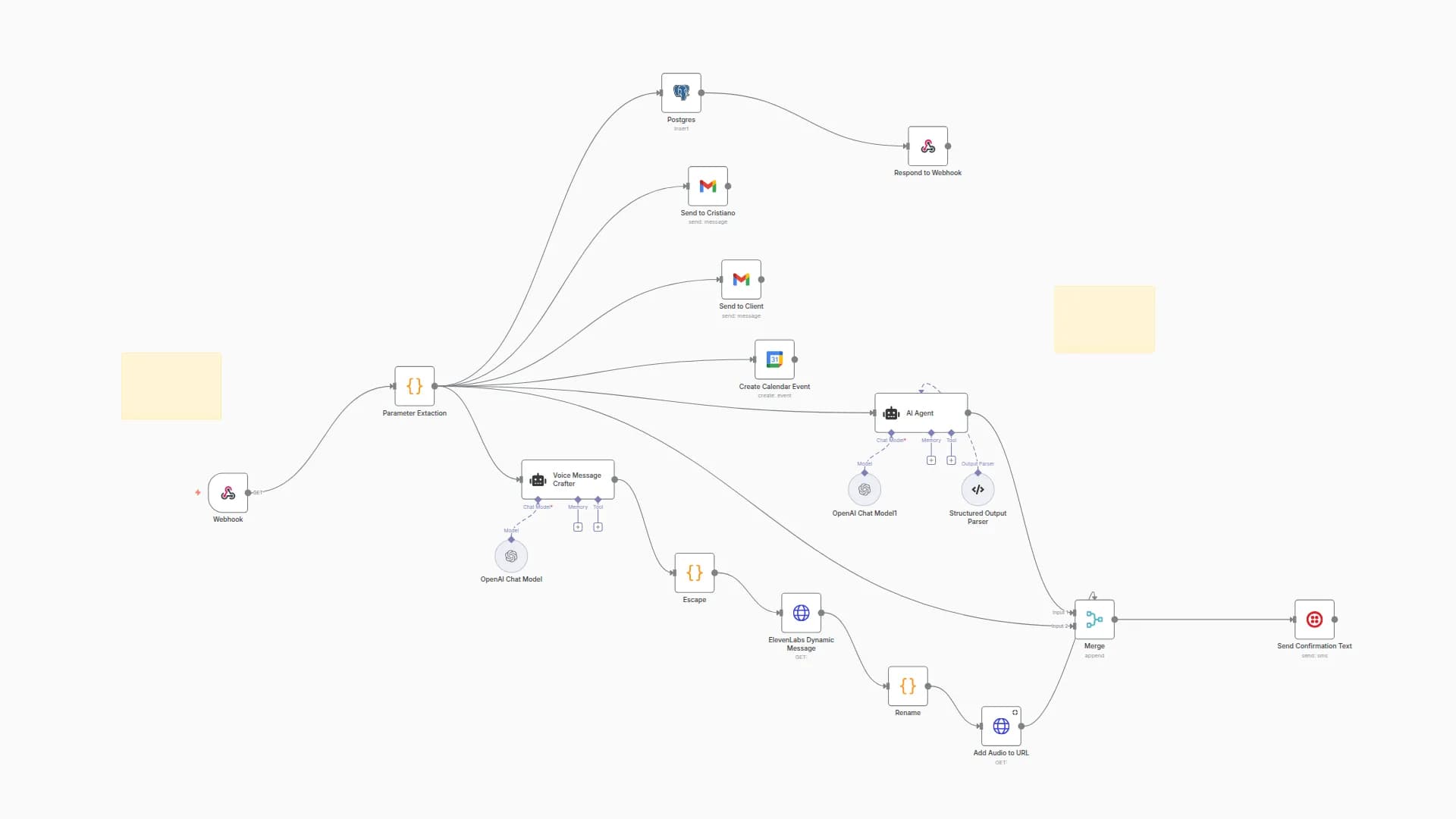
- Appointment Trigger: The workflow starts when a new event is created in your Google Calendar for a patient appointment.
- AI-Powered Education: The new appointment is sent to an OpenAI (GPT-4) node, which acts as a virtual clinic assistant. It instantly generates a personalized pre-procedure guide based on the appointment's details.
- Automated Communication: The workflow then uses Twilio to send this AI-generated guide directly to the patient via SMS or WhatsApp, ensuring they are well-prepared for their appointment.
- Post-Procedure Follow-up: After the appointment ends, a
Waitnode pauses the workflow for a set period. It then sends a personalized follow-up message—also generated by OpenAI—to the patient, encouraging them to provide feedback. - Staff Notification: A Slack notification is sent to the team once a follow-up message has been dispatched, keeping everyone informed and ready to act on incoming feedback.
How to Set Up 🛠️
- Import the Workflow: Copy the provided workflow JSON and import it into your n8n instance.
- Configure Credentials:
- Google Calendar: Add your OAuth2 credential.
- OpenAI: Add your API Key.
- Twilio: Add your API credentials.
- Slack: Add your Bot Token credential.
- Customize Workflow Nodes:
- Node 1 (
Google Calendar Trigger): Select your clinic's booking calendar. - Node 2 & 5 (
OpenAI): You can customize the prompts to better match your clinic's tone and specific procedures. - Node 3 & 6 (
Twilio): ReplaceYOUR_TWILIO_NUMBERwith your Twilio number and ensure you can extract the patient's phone number from your calendar events (e.g., from the event description). - Node 7 (
Slack): ReplaceYOUR_SLACK_CHANNEL_IDwith the ID of your team's feedback or operations channel.
- Node 1 (
- Save & Activate: Once all settings and credentials are configured, save the workflow and click the "Inactive" toggle in the top-right corner to make it live.
You may also like

New to n8n?
Need help building new n8n workflows? Process automation for you or your company will save you time and money, and it's completely free!


