Automated Client Journey Appointment Reminders & Follow-ups with Twilio


Last edited 206 days ago
How It Works ⚙️
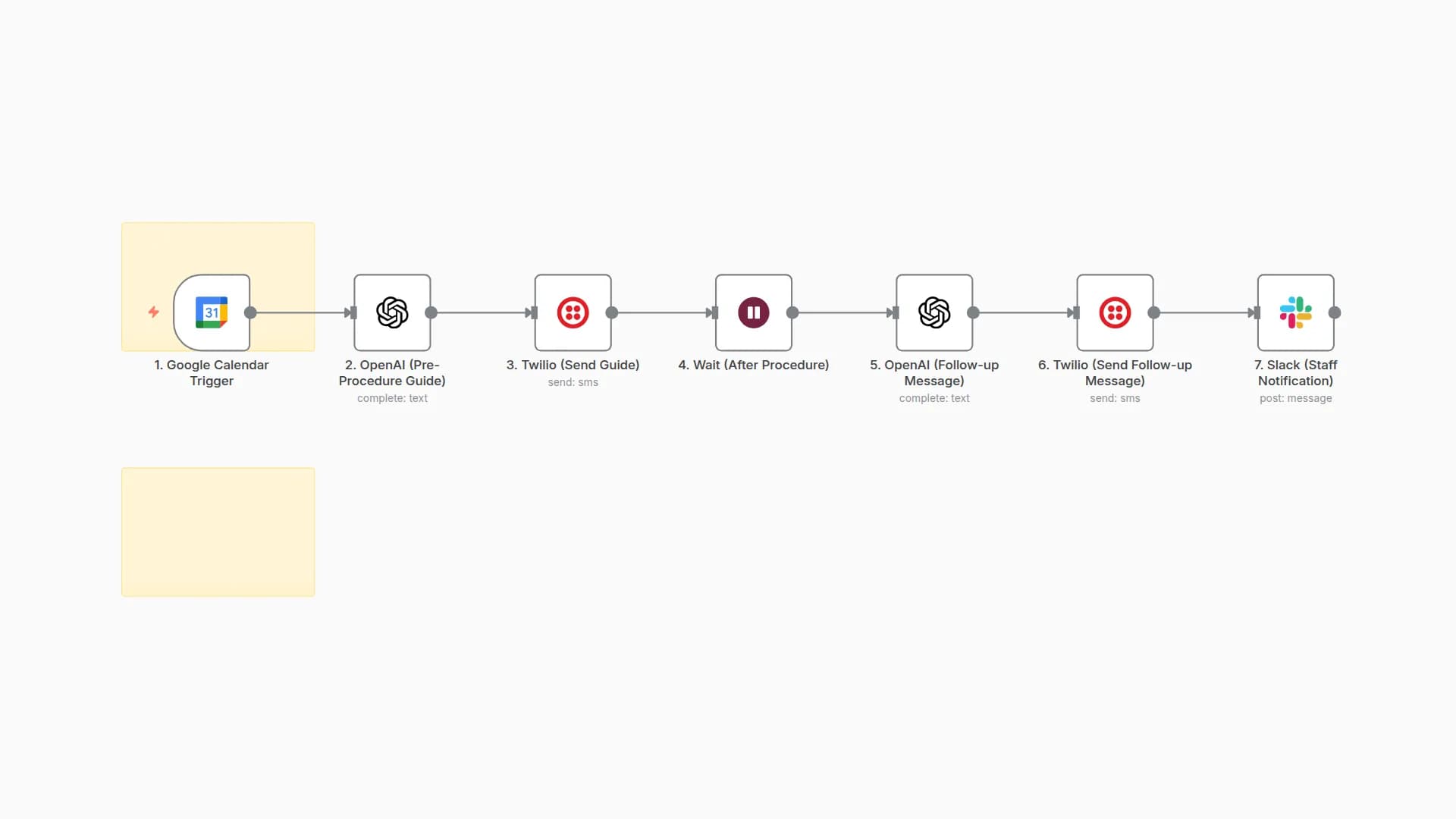
This workflow is a comprehensive, AI-powered system that acts as a virtual client relationship manager for any appointment-based business. It handles the entire client journey—from appointment booking to follow-up and re-engagement—all on autopilot.
- Appointment Trigger: The workflow starts when a new event is created in your Google Calendar.
- Client Data Management: It queries your client CRM database (Airtable or Google Sheets) to check if the client's email exists, preparing to send a personalized message.
- Dynamic Reminders: An
Ifnode splits the workflow. It sends a personalized welcome message for new clients and a standard reminder for returning clients, drastically reducing no-shows. - Post-Appointment Follow-up: A
Waitnode pauses the workflow until after the appointment ends. It then sends a personalized "thank you" message via Twilio with a link to a review or survey. - Re-engagement Loop: A separate
Crontrigger runs weekly, automatically identifying clients who haven't rebooked in a set period (e.g., 30 days) and sends them a personalized offer to encourage them to return. - Data Logging: It automatically logs all client data and engagement actions into a central database like Airtable or Google Sheets, creating a real-time dashboard for your business.
How to Set Up 🛠️
-
Import the Workflow: Copy the provided workflow JSON and import it into your n8n instance.
-
Configure Credentials:
- Google Calendar: Add your OAuth2 credential.
- Twilio: Add your API credentials.
- Google Sheets / Airtable: Add your credentials for your chosen CRM.
-
Customize Workflow Nodes:
- Node 1 (
Google Calendar Trigger): Select your Google Calendar credential and the calendar you use for bookings. - Node 2 (
Google Sheets / Airtable): Connect to your client CRM. Adjust the filter to search by the client's email from the calendar event. - Node 4 & 5 (
Twilio Reminders): ReplaceYOUR_TWILIO_NUMBERwith your Twilio number. Customize the message body to fit your business. - Node 6 (
Wait): Adjust theWait Durationif you want to send the follow-up message at a different time after the appointment. - Node 7 (
Twilio Follow-up): Replace the placeholder[LINK TO YOUR REVIEW/SURVEY PAGE]with your actual link. - Nodes 8, 9, 10 (
Re-engagement Loop): This is an optional, high-value part of the workflow. Configure theCronnode to run on your desired schedule. Adjust the filter in theFind Clientsnode to your specific re-engagement criteria (e.g., last visit date is older than 30 days).
- Node 1 (
-
Save & Activate: Once all settings and credentials are configured, save the workflow and click the "Inactive" toggle in the top-right corner to make it live.
You may also like
New to n8n?
Need help building new n8n workflows? Process automation for you or your company will save you time and money, and it's completely free!


