Automate Quote Request Processing with Tally, Airtable, Slack, and Gmail


Last edited 206 days ago
What if your quote requests managed themselves?
Every quote request is a potential deal — but only if it's handled quickly, properly, and without things falling through the cracks. What if instead of copy-pasting emails and pinging teammates manually, your entire process just... ran itself?
This automation makes it happen: it captures form submissions, notifies your sales team on Slack, stores leads in Airtable, and sends an email confirmation to the client — all in one seamless n8n flow.
⚙️ Tools used
- Tally – to collect client quote requests
- n8n – to automate everything, no code needed
- Airtable – to store leads and track status
- Slack – to instantly notify your sales team
- Gmail – to confirm the request with the client
🧩 Flow structure overview
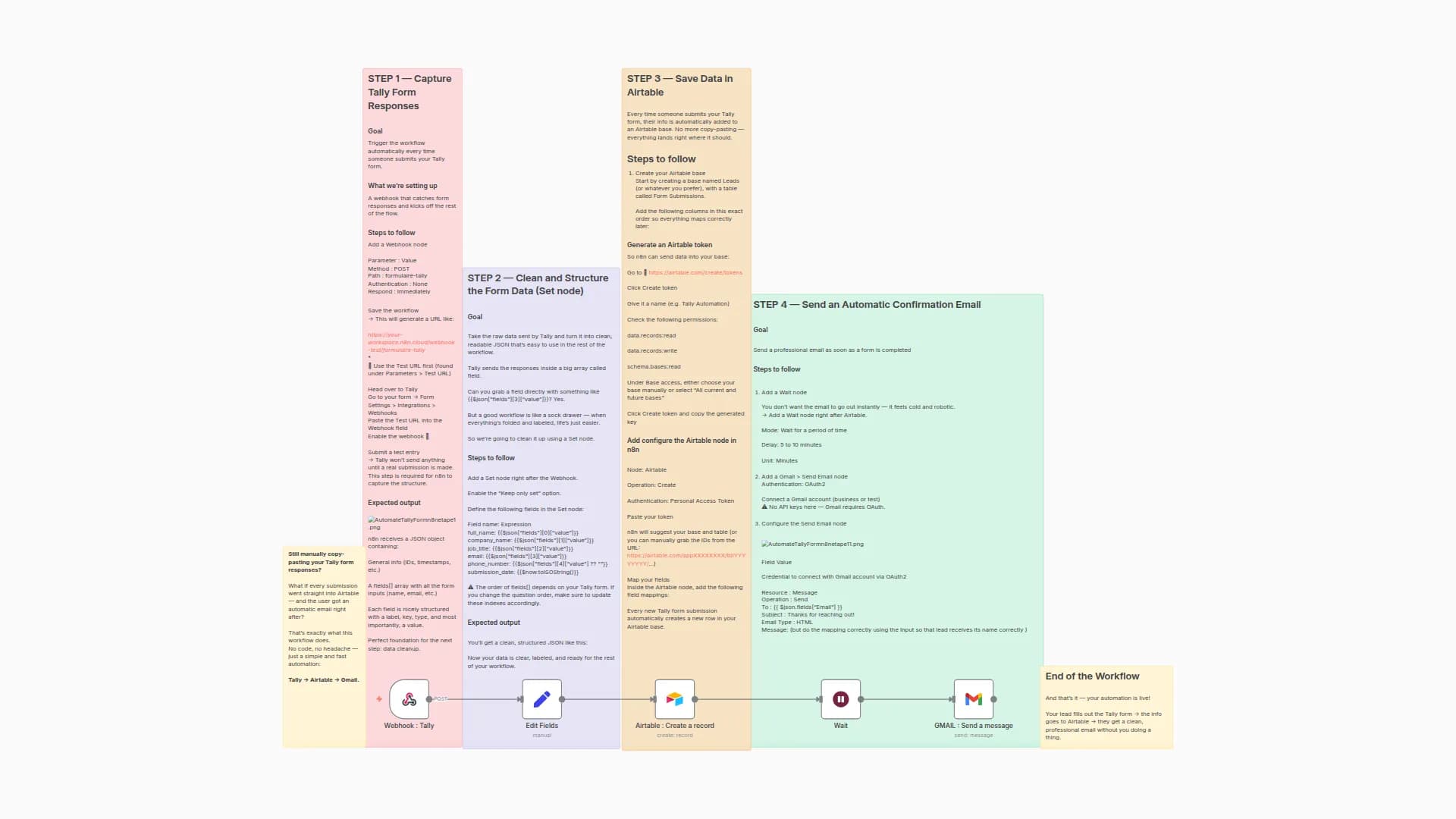
- Trigger from a Tally form using a webhook
- Extract and format the data
- Create a new record in Airtable
- Send a message to Slack
- Wait 5 minutes
- Send an email confirmation via Gmail
📥 Step 1 – Webhook (Tally)
This node listens for incoming quote requests from the Tally form.
- HTTP Method: POST
- Path: /Request a Quote
- Authentication: None
- Respond: Immediately
The data arrives as an array inside body.data.fields. Each field has a label and a value that we’ll need to map manually.
🧹 Step 2 – Edit Fields (Set)
This step extracts usable values from the raw form data.
Example mapping:
Name = {{ $json.body.data.fields[0].label }}
Email Address = {{ $json.body.data.fields[1].value }}
Type of Service Needed = {{ $json.body.data.fields[2].value }}
Estimated Budget = {{ $json.body.data.fields[3].value }}
Preferred Timeline = {{ $json.body.data.fields[4].value }}
Additional Details or Questions = {{ $json.body.data.fields[5].value }}
📊 Step 3 – Create record in Airtable
We send the cleaned fields into a database (CRM) in Airtable.
- Operation: Create
- Base & Table: Request a Quote - Airtable Base
- Mapping: Manual field-to-column matching
Each quote submission becomes a new record with all project details.
📣 Step 4 – Send a message to Slack
This node notifies your sales team immediately in a Slack channel.
Message format:
:new: *New quote request received!*

👤 Name: {{ $json.fields.Name }}
📧 Email: {{ $json.fields.Email }}
💼 Service: {{ $json.fields["Type of Service"] }}
💰 Budget: {{ $json.fields["Estimated Budget (€)"] }}
⏱️ Timeline: {{ $json.fields["Preferred Timeline"] }}
📝 Notes: {{ $json.fields["Additional Details"] }}
⏳ Step 5 – Wait 5 minutes
This node simply delays the email by 5 minutes.
Why? To give a human salesperson time to reach out manually before the automated confirmation goes out. It adds a personal buffer.
📧 Step 6 – Send confirmation via Gmail
- To: {{ $('Edit Fields').item.json["Email Address"] }}
- Subject: Thanks for your quote request 🙌
- Email Type: HTML
Message body:
Hi {{ $('Edit Fields').item.json.Name }},

Thanks a lot for your quote request — we’ve received your information!

Our team will get back to you within the next 24 hours to discuss your project.

Talk soon,
— The WebExperts Team
✅ Final result
With this automation in place:
- The client feels acknowledged and taken seriously
- Your team gets notified in real time
- You store everything in a clean, structured database
All this without writing a single line of backend code. It’s fast, scalable, and business-ready.
You may also like


New to n8n?
Need help building new n8n workflows? Process automation for you or your company will save you time and money, and it's completely free!


