Generate Tailored Interview Questions with GPT-4 Based on CV, JD, and Round


Last edited 206 days ago
🤖 Smart Interview Assistant: Tailored Questions Based on CV, JD, and Round
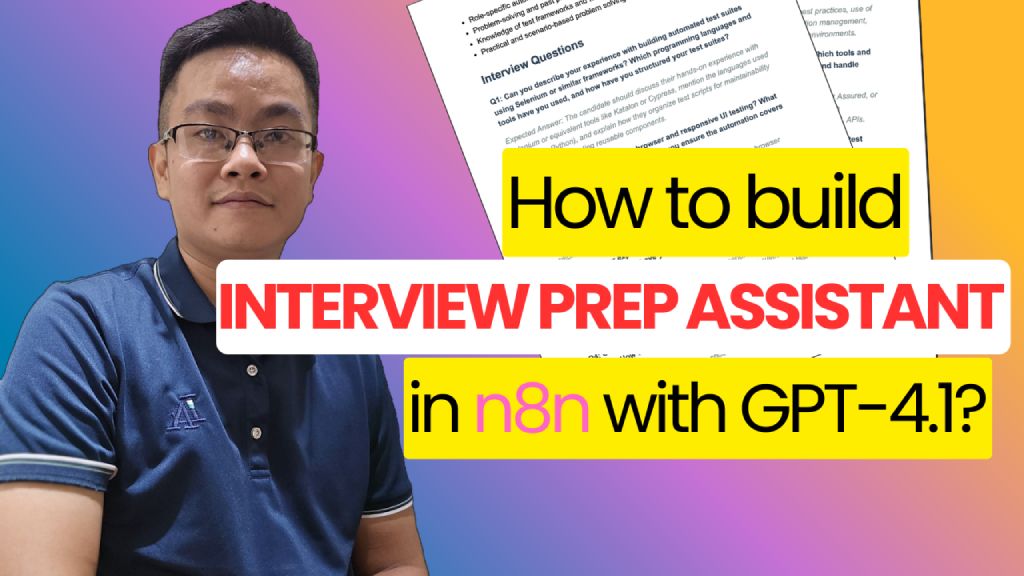
Watch the demo video below:
📌 Who’s it for
This workflow is designed for:
- Recruiters and Talent Acquisition Specialists who want to automate candidate interview prep.
- Hiring Managers conducting multiple interviews and needing personalized question sets.
- Technical Interviewers who want to save time and be well-prepared with relevant questions.
⚙️ How it works / What it does
The Smart Interview Assistant automates the interview preparation process in a few clicks:
- Accepts:
- Multiple resumes (PDFs)
- Selected job role
- Chosen interview round
- Extracts structured data from:
- The candidate’s CV
- The corresponding Job Description (JD)
- Uses GPT-4 to analyze:
- Candidate profile
- Role requirements
- Interview round context
- Generates:
- Tailored interview questions
- Expected answers
- A summarized interview prep report
- Sends the report directly to the hiring team via email (SMTP)
📁 Google Drive Structure
📂 Root Folder
├── 📁 jd/                          # Stores all job descriptions in PDF format
│   ├── Backend_Engineer.pdf
│   ├── Azure_DevOps_Lead.pdf
│   └── ...
└── 📄 Positions (Google Sheet)    # Maps Job Role ↔ JD File Link
📝 Sample Mapping Sheet:
Positions Sheet
Columns:
Job RoleJob Description File URL(pointing to PDF injd/folder)
🛠️ How to Set Up
Step 1: Configure API Integrations
- ✅ Connect your OpenAI GPT-4 API Key
- ✅ Enable Google Cloud APIs:
- Google Sheets API (to read job roles)
- Google Drive API (to access CV and JD files)
- ✅ Set up SMTP credentials (for email delivery)
Step 2: Prepare Google Drive & Mapping Sheet
- Create a root folder on Google Drive
- Inside the root folder:
- Create a folder named
/jd/and upload all job descriptions (PDFs)
- Create a folder named
- Create a Google Sheet named
Positionswith the following format:
| Job Role                     | Job Description File URL                   |
|-----------------------------|--------------------------------------------|
| Azure DevOps Engineer        | https://drive.google.com/xxx/jd1.pdf       |
| Full-Stack Developer (.NET)  | https://drive.google.com/xxx/jd2.pdf       |
Step 3: Build the Application Form
Use any form tool (e.g., Typeform, Tally, or custom HTML) that collects:
- 📎 Resume file (PDF)
- 🧾 Job Role (dropdown)
- 🔄 Interview Round (dropdown)
Step 4: Resume & JD Extraction
- 🔍 Use
Extract from PDFto parse the resume content - 📄 Retrieve the JD link from the
Positionssheet based on the selected Job Role - 🔗 Use
Download fileto pull the PDF for processing
Step 5: Analyze with GPT-4
- Run both Resume and JD through a Profile Analyzer Agent (GPT-4 with JSON output)
- Merge results
- Add manual input or mapping for the Interview Round metadata
Step 6: Generate Interview Report
- Use a second GPT-4 agent (e.g.,
HR Expert Agent) to:- Generate 6–8 tailored interview questions
- Include expected answers and rationale
Step 7: Deliver Final Report
- Format the content as:
- 📄 PDF (optional)
- 📨 Email body
- Send the report to the recruiter, hiring manager, or interviewer via SMTP
✅ Requirements
- 🔑 OpenAI GPT-4 API Key
- 📁 Google Drive (for resume and JD storage)
- 📊 Google Sheet (job role mapping)
- 📬 SMTP credentials (host, username, password)
- 🧰 n8n self-hosted or cloud instance with:
- PDF Parser
- Google Sheets node
- HTTP Download node
- Email node
✏️ How to Customize the Workflow
Part
Customization Options
Form UI
Modify the design, dropdown options, or input validations
Job Description Source
Replace Google Sheet with Notion, Airtable, or database
Interview Metadata
Add job level, region, or language preference
AI Prompt Tuning
Adjust prompt phrasing or temperature in GPT nodes
Report Format
Generate PDF instead of email body using PDF node
Delivery Method
Add internal HR portal webhook or generate downloadable link
You may also like


New to n8n?
Need help building new n8n workflows? Process automation for you or your company will save you time and money, and it's completely free!


