ScrapingBee and Google Sheets Integration Template


Last edited 223 days ago
This workflow contains community nodes that are only compatible with the self-hosted version of n8n.
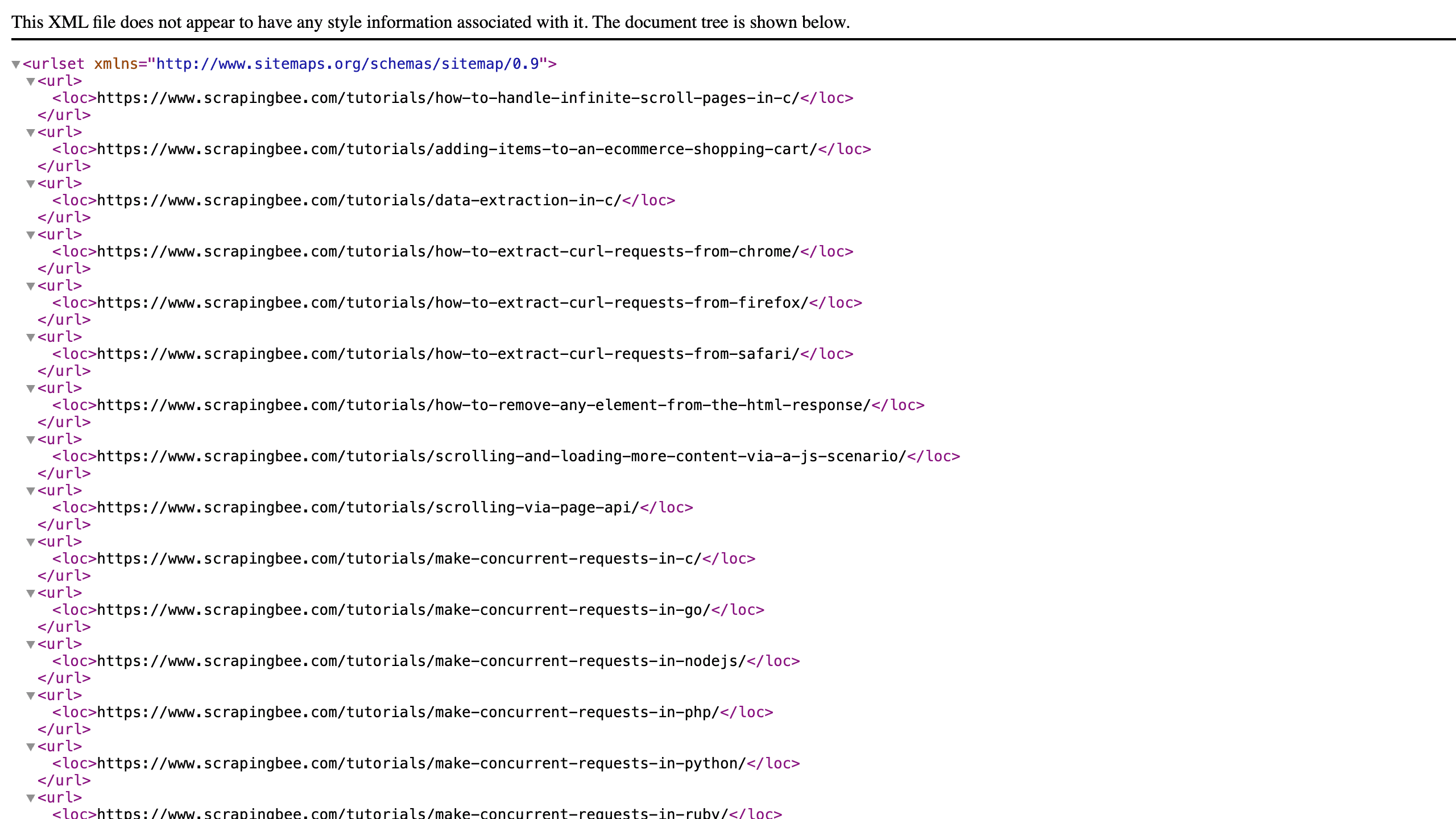
This workflow allows users to extract sitemap links using ScrapingBee API. It only needs the domain name www.example.com and it automatically checks robots.txt and sitemap.xml to find the links. It is also designed to recursively run the workflow when new .xml links are found while scraping the sitemap.
How It Works
- Trigger: The workflow waits for a webhook request that contains
domain=www.example.com - It then looks for
robots.txtfile, if not found it checkssitemap.xml - Once it finds xml links, it recursively scrapes them to extract the website links
- For each xml file, first it checks whether it's a binary file and whether it's a compressed xml
- If it's a text response, it directly runs a code that extracts normal website link and another code to extract xml links
- If it's a binary that is not compressed, it just extracts text from the binary and then extract webiste links and xml links
- If it's a compressed binary, it first decompresses it and then extracts the text and then the links and xml
- After extracting website links, it appends those links directly to a sheet
- After extracting xml links, it scrapes them recursively until it finds all website links
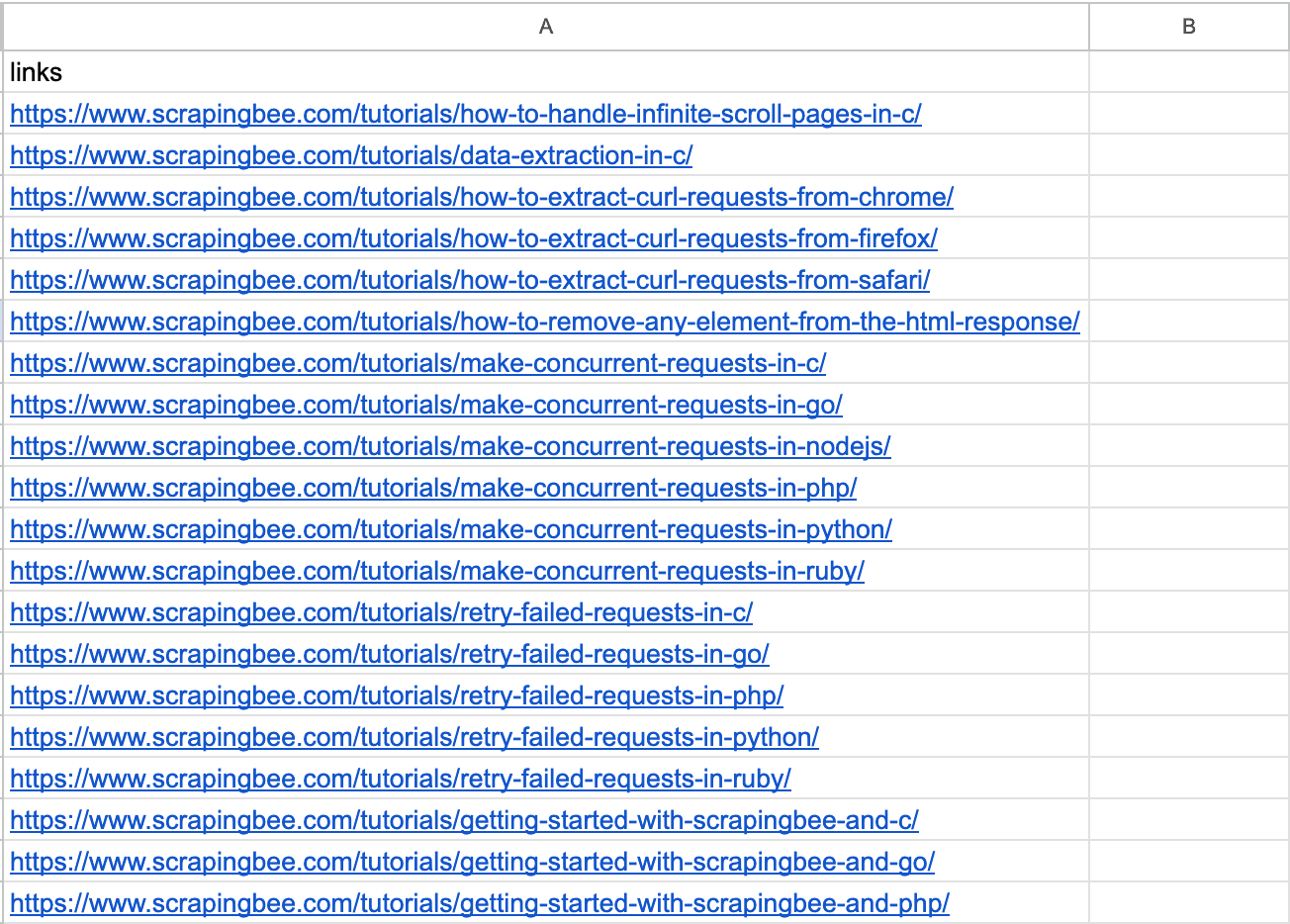
When the workflow is finished, you will see the output in the links column of the Google Sheet that we added to the workflow.
Set Up Steps
- Get your ScrapingBee API Key here
- Create a new google sheet with an empty column named
links. Connect to the sheet by signing in using your Google Credential and add the link to your sheet. - Copy the webhook url, and send a GET request with
domainas query parameter. Example:
curl "https://webhook_link?domain=scrapingbee.com"
Customisation Options
- If the website you are scraping is blocking your request, you can try using premium or stealth proxy in
Scrape robots.txt file,Scrape sitemap.xml file, andScrape xml filenodes. - If you wish to store the data in a different app/tool or store it as a file, you would just need to replace
Append links to sheetnode with a relevant node.
Next Steps
If you wish to scrape the pages using the extracted links, then you can implement a new workflow that reads the sheet or file (output generated by this workflow) for links and for each link send a request to ScrapingBee's HTML API and save the returned data.
NOTE: Some heavy sitemaps could result in a crash if the workflow consumes more memory than what is available in your n8n plan or self-hosted system. If this happens, we would recommend you to either upgrade your plan or use a self-hosted solution with a higher memory.
You may also like
New to n8n?
Need help building new n8n workflows? Process automation for you or your company will save you time and money, and it's completely free!


