Text-to-Image Generator with Google Sheets & Drive Integration using Flux AI


Categories
Created by
evEvoort SolutionsLast edited 205 days ago
🖼️ Text-to-Image Generator using n8n + Flux AI
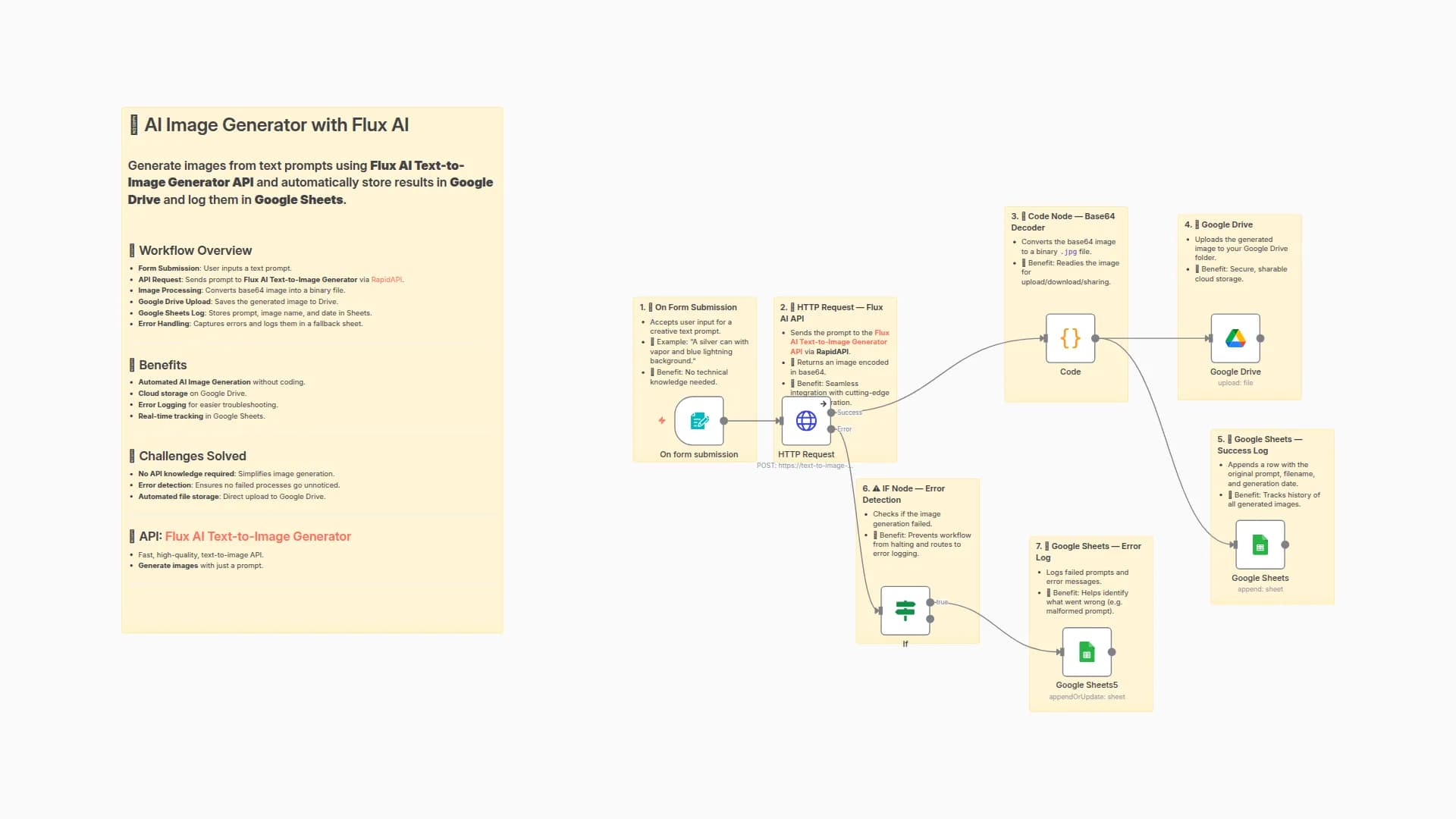
This n8n workflow automates image generation from text prompts using the Text-to-Image Flux AI API. It reads prompts from Google Sheets, generates images via API, uploads them to Google Drive, and logs the outcome.
🌟 Key Features
- Integrates with Text-to-Image Flux AI on RapidAPI
- Converts base64 image data to downloadable files
- Stores images on Google Drive
- Updates logs and errors back into Google Sheets
- Skips prompts already processed
📄 Google Sheet Column Structure
Your source Google Sheet should include the following columns:
Column Name
Description
Prompt
The text prompt to generate an image from
drive path
(Optional) File path or URL of saved image
Generated Date
Date/time the image was generated
Base64
Base64 string or error message (for logging)
Only rows with a non-empty Prompt and empty drive path will be processed.
📌 Use Case
Perfect for:
- Bulk AI image generation for content marketing
- Creative automation with prompt-based image creation
- Building image assets based on structured datasets
- Any workflow where prompts are tracked via Google Sheets
Uses the Text-to-Image Flux AI API to generate high-quality images on demand.
🔧 Workflow Summary
Step
Node
Description
1
Manual Trigger
Manually start the workflow
2
Google Sheets2
Reads prompts from Google Sheets
3
Loop Over Items
Processes rows one by one
4
If2
Skips rows that already have images
5
HTTP Request1
Calls Text-to-Image Flux AI via RapidAPI
6
Code1
Converts base64 image to binary file
7
Google Drive1
Uploads the image file to a Drive folder
8
Google Sheets1
Logs base64 result and timestamp back
9
If1
Handles errors from the API
10
Google Sheets4
Logs errors to the sheet
11
Wait
Adds delay between batches to prevent rate-limiting
🚀 RapidAPI: Text-to-Image Flux AI
This flow is powered by Text-to-Image Flux AI.
Be sure to:
- Sign up at RapidAPI and subscribe to the API.
- Copy your API Key.
- Replace
"your key"in theHTTP Request1node’sx-rapidapi-keyheader.
You can test the API directly here before connecting it to n8n.
✅ Tips for Setup
- Ensure you’ve set up a Google Service Account with access to both Sheets and Drive.
- Fill only the
Promptcolumn — leavedrive pathandBase64empty for new prompts. - Monitor your RapidAPI dashboard for usage and quota.
Create your free n8n account and set up the workflow in just a few minutes using the link below:
Save time, stay consistent, and grow your LinkedIn presence effortlessly!
You may also like
New to n8n?
Need help building new n8n workflows? Process automation for you or your company will save you time and money, and it's completely free!


