Generate Comprehensive Financial Reports with GPT-4 Analysis and Anomaly Detection


Last edited 205 days ago
How It Works ⚙️
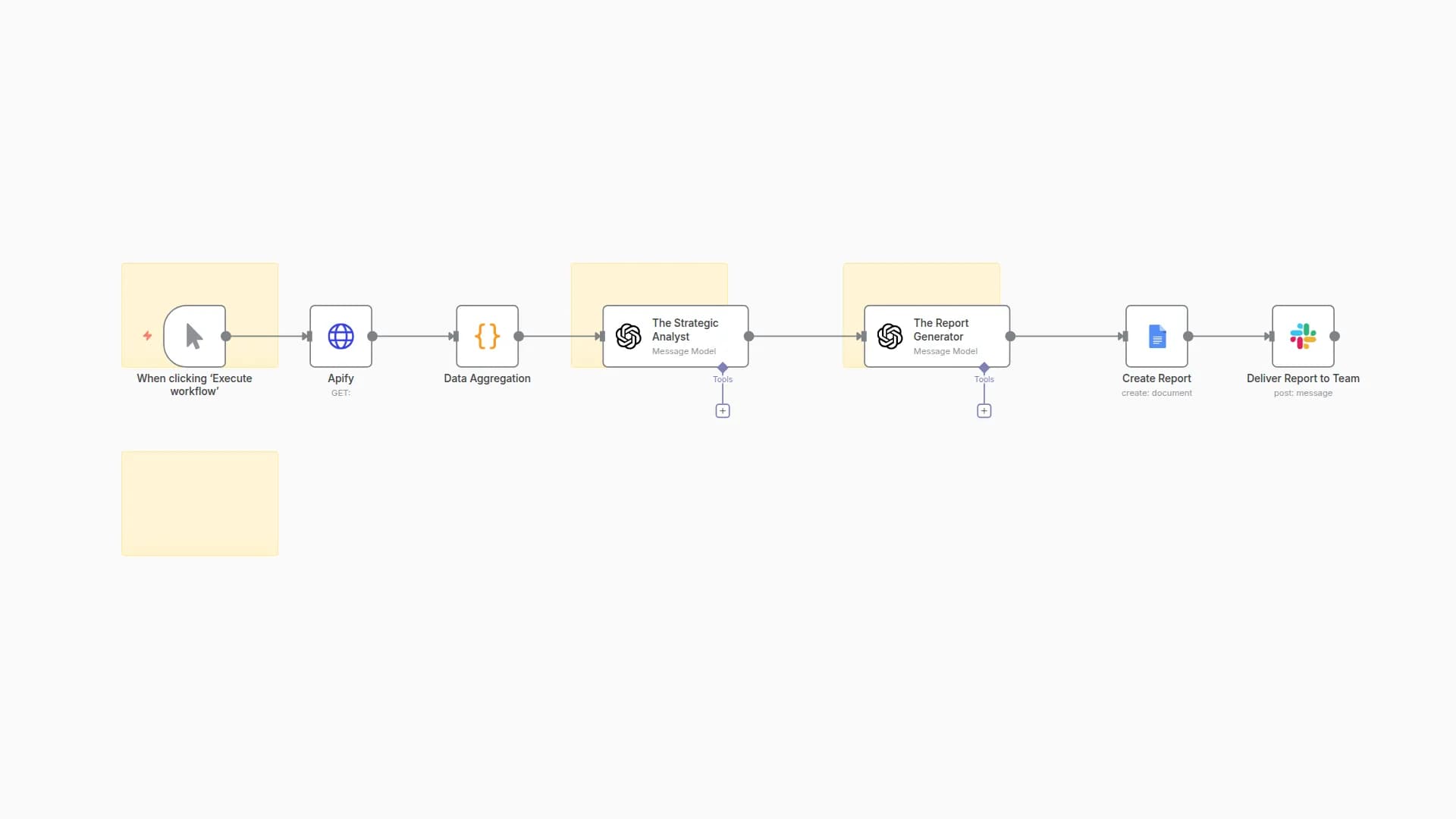
Imagine a dedicated financial expert tirelessly working behind the scenes, sifting through every transaction, every investment move, and every accounting entry. That's exactly what this automated system does for you, turning raw financial chaos into crystal-clear insights.
-
Automated Data Gathering (The Collector):
- What happens: The system automatically connects to your bank accounts, investment platforms, and accounting software (like QuickBooks or Xero) on a schedule you define (e.g., daily, weekly). It pulls in all your latest financial data – every transaction, income, expense, and investment update.
- Data In:
Transaction descriptions,amounts,dates,investment details,income/expense categories(if available).
-
AI-Powered Data Cleaning & Categorization (The Organizer & Detective):
- What happens: Once collected, the data is sent to our first two AI brains.
- AI Agent 1 (The Categorizer): Reads through every
transaction descriptionand intelligently assigns it to a standard financial category (e.g., "Dining," "Groceries," "Utilities," "Software Subscriptions"). No more manual tagging! - AI Agent 2 (The Anomaly Detector): Scans the categorized data for anything unusual – a
transaction amountthat's too high, a potentialduplicate entry, or anysuspicious activity. It flags these items immediately.
- AI Agent 1 (The Categorizer): Reads through every
- Data Out:
Clean, categorized transactions,flagged anomalieswith reasons.
- What happens: Once collected, the data is sent to our first two AI brains.
-
Deep Financial Analysis & Insight Generation (The Strategist):
- What happens: With clean data in hand, specialized AI agents get to work on the strategic analysis:
- AI Agent 3 (Spending Pattern Analyst): Identifies your key
spending trendsover time. Are you spending more on certain categories? Where can you save? - AI Agent 4 (Investment Performance Insight): Reviews your
investment gains and lossesand gives you a clear picture of yourportfolio's health. - AI Agent 5 (Overall Financial Health Assessor & Recommender): This top-tier AI synthesizes ALL the insights. It provides a concise summary of your overall
financial healthand, critically, gives you 3-5 clear, actionable recommendations on how to improve your finances or capitalize on opportunities.
- AI Agent 3 (Spending Pattern Analyst): Identifies your key
- Data Out:
Analysis summaries,spending insights,investment performance notes,overall financial health assessment, and preciserecommendations.
- What happens: With clean data in hand, specialized AI agents get to work on the strategic analysis:
-
Automated Reporting & Smart Alerts (The Communicator):
- What happens: All the AI-generated insights are automatically compiled into a professional
financial report. This report populates a pre-designedGoogle Docstemplate, making it look polished and ready for review. - Immediate Alerts: If AI Agent 2 flagged any
anomalies, you get an instant notification (e.g., viaSlack) so you can investigate immediately. - Report Delivery: The full
reportis automatically sent to your email inbox, and a summary notification is sent to your team'sSlackchannel. - Outcome: You receive regular, detailed, and actionable financial reports without lifting a finger, always staying informed and ahead.
- What happens: All the AI-generated insights are automatically compiled into a professional
Setup Steps 🛠️
Building this powerful system is simpler than you might think. Here’s your step-by-step guide:
-
Prepare Your Digital Foundation:
- Financial Data Access: Figure out how you'll get your raw data.
- For APIs (Recommended): If your bank, investment platform, or accounting software has an API (like Plaid, QuickBooks, Xero), get your API keys and understand their basic
HTTP Requeststructure. - For CSVs: If you download CSV statements, ensure they have consistent formats (
Date,Description,Amountat minimum). You'll useCSV Readnodes instead ofHTTP Request.
- For APIs (Recommended): If your bank, investment platform, or accounting software has an API (like Plaid, QuickBooks, Xero), get your API keys and understand their basic
- Google Sheets Database: Create two separate Google Sheets in your Google Drive:
- "Raw Financial Data" Sheet: This sheet will store all the untouched data collected from your sources. Set up columns like
Date,Description,Amount,Source,Transaction Type,Asset, etc. - "Categorized Financial Data" Sheet: This sheet will store the data after it's been cleaned and categorized by the AI. Add columns for
Category,Is Flagged,Flag Reason, alongside the raw data columns.
- "Raw Financial Data" Sheet: This sheet will store all the untouched data collected from your sources. Set up columns like
- Financial Report Template (Google Docs): Create a new
Google Docthat will be your professional report template. Design it how you want your final report to look. Insert clear placeholders like{{ report_title }},{{ executive_summary }},{{ spending_analysis }},{{ overall_assessment_recommendations }}, etc., where the AI content will go. Crucially, copy the Document ID from the URL of this template.
- Financial Data Access: Figure out how you'll get your raw data.
-
Get Your API Keys & Credentials:
- OpenAI API Key: This is essential for all the AI brains. Get it from your OpenAI account.
- Google Sheets Credentials: You'll need to create an OAuth2 credential in n8n to link to your Google Sheets.
- Gmail Credentials: For sending the final reports. Set up an OAuth2 credential.
- Slack Credentials: If you want alerts and notifications. Get a Bot Token from your Slack app settings.
- (Optional) Other API Keys: If you're using specific financial APIs (e.g., Plaid, QuickBooks), gather their respective API keys and authentication details.
-
Import the n8n Workflow:
- We've provided the detailed node structure in previous responses. You'll translate that into an n8n workflow by adding each node manually and connecting them as described. This gives you full control and understanding!
-
Connect Your Tools (N8n Credentialing & Linking):
- Go to each node in your n8n workflow that requires a credential (e.g.,
OpenAI,Google Sheets,Gmail,Slack,HTTP Request). - Select the credential you created in Step 2. This links n8n to your external services.
- Go to each node in your n8n workflow that requires a credential (e.g.,
-
Customize Your Workflow Nodes (The Smart Part!):
CronNode (Node 1): Set your desiredSchedule(e.g., "Every 1 Day" for daily reports, or "Every 1 Week" for weekly).HTTP RequestNodes (Nodes 2, 3, 4):- Paste the exact
URLsfor your financial APIs. - Configure the
Method(GET/POST) andAuthenticationtype (e.g., "Header Auth," "OAuth2") specific to each API. - If using CSVs: Replace these nodes with
CSV Readnodes and point them to your CSV file paths.
- Paste the exact
Google SheetsNodes (Nodes 7, 8, 13, 14):- Paste the
Spreadsheet IDsfor your "Raw Financial Data" and "Categorized Financial Data" sheets. - Ensure the
Sheet Nameis correct (e.g., "Sheet1" or "Transactions"). - Crucially, map the
Valuescorrectly so that the data goes into the right columns in your sheets.
- Paste the
OpenAINodes (Nodes 10, 11, 16, 17, 18):- This is the most powerful part! Carefully review and refine the
Promptswithin these nodes. Tailor the categories for AI Agent 1, specify what counts as an "anomaly" for AI Agent 2, and ensure the tone and focus of recommendations from AI Agent 5 match your needs. Test these prompts extensively!
- This is the most powerful part! Carefully review and refine the
Google DocsNode (Node 20):- Paste your
Template Document IDfrom Step 1. - Map the
Valuesfrom your consolidated AI insights ({{ $json.report_title }}, etc.) to the placeholders you created in your Google Doc template.
- Paste your
SlackNodes (Nodes 22, 24):- Enter the specific
Chat IDs(channel IDs) for where you want anomaly alerts and general report notifications to appear.
- Enter the specific
-
Test & Activate!
- Run Manual Tests: Before activating, manually trigger the workflow a few times. Check each node's output to ensure data is flowing correctly and AI agents are generating the expected results.
- Activate: Once you're confident everything is working, click the "Inactive" toggle in the top-right corner of your workflow to set it live.
Congratulations! You've just built a sophisticated, AI-powered financial analysis and reporting system that will bring unprecedented clarity and control to your finances.
You may also like
New to n8n?
Need help building new n8n workflows? Process automation for you or your company will save you time and money, and it's completely free!


